Active DirectoryWindows Server-Sistem Yöneticiliği
Setting User Logon Hours on Active Directory
In a company, logon hours are configured to prevent employees from working outside of business hours and accessing domain resources. These hours are set…

Mehmet Kadir CIRIK
Hello everyone. :)
In a company, logon hours are configured to prevent employees from working outside of business hours and accessing domain resources. These hours are set and managed by system administrators.
In this article, I want to restrict the computers of employees who work between 8 a.m. and 6 p.m. The restriction we’ll apply is described step by step below.
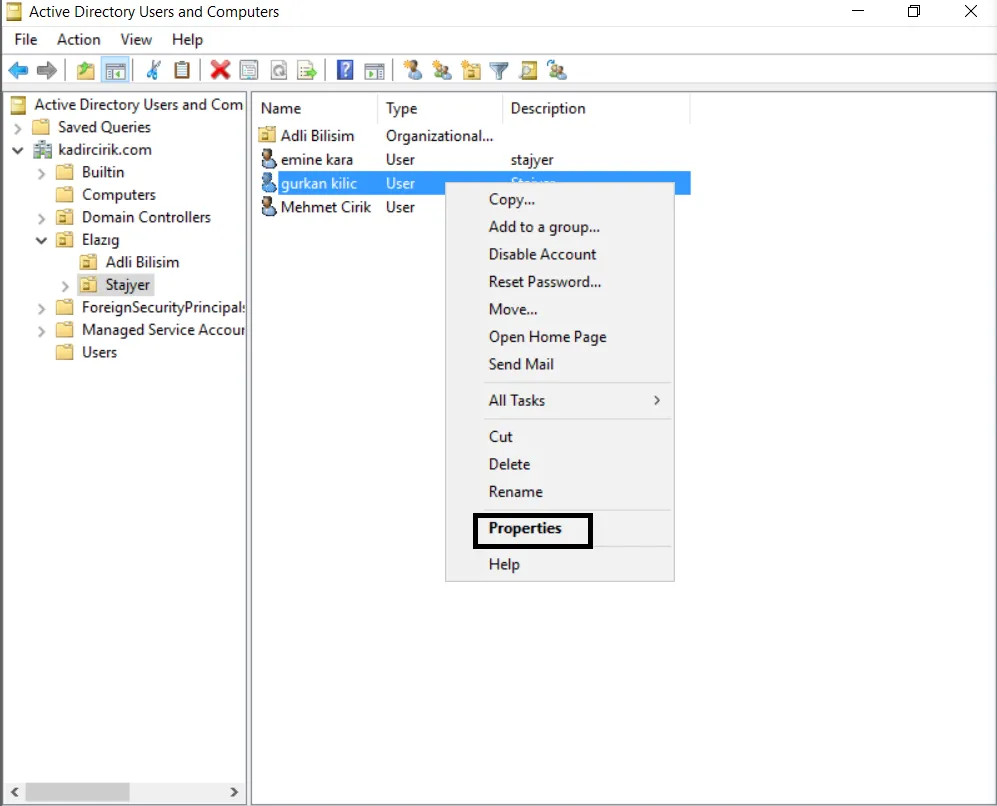
- I go to the user I want to restrict, “Gurkan Kilic”, and double-click “right click > properties”.
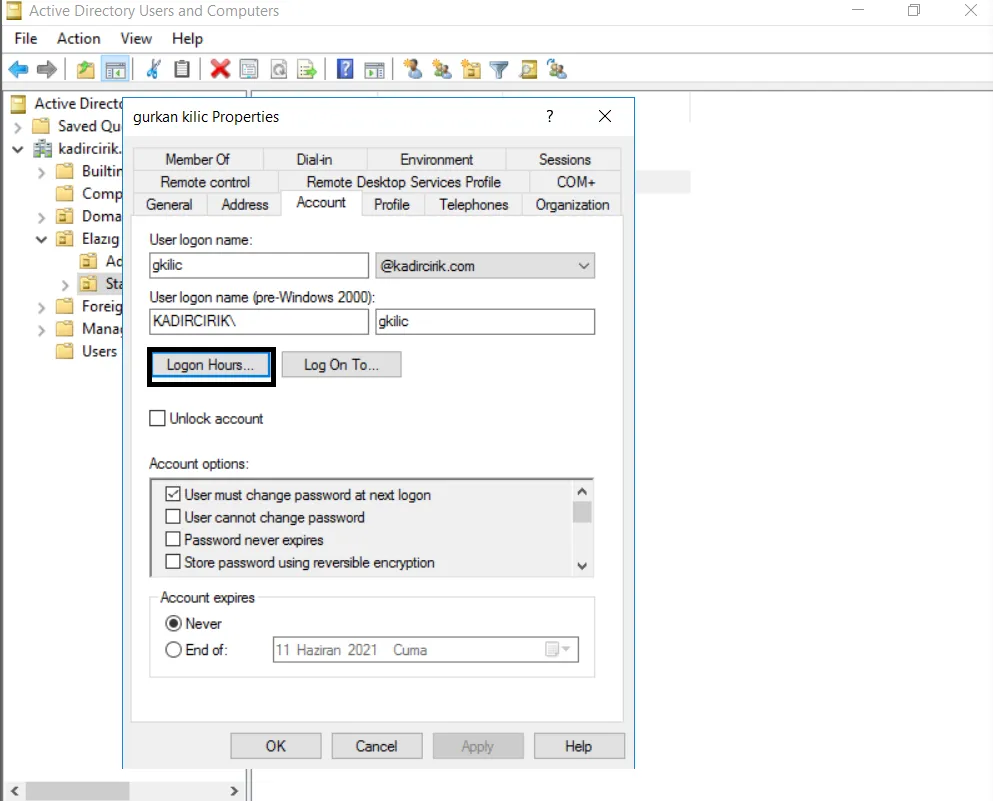
- On the screen that appears, we first go to the “Account” tab at the top. Then we click on “Logon Hours” just below it.
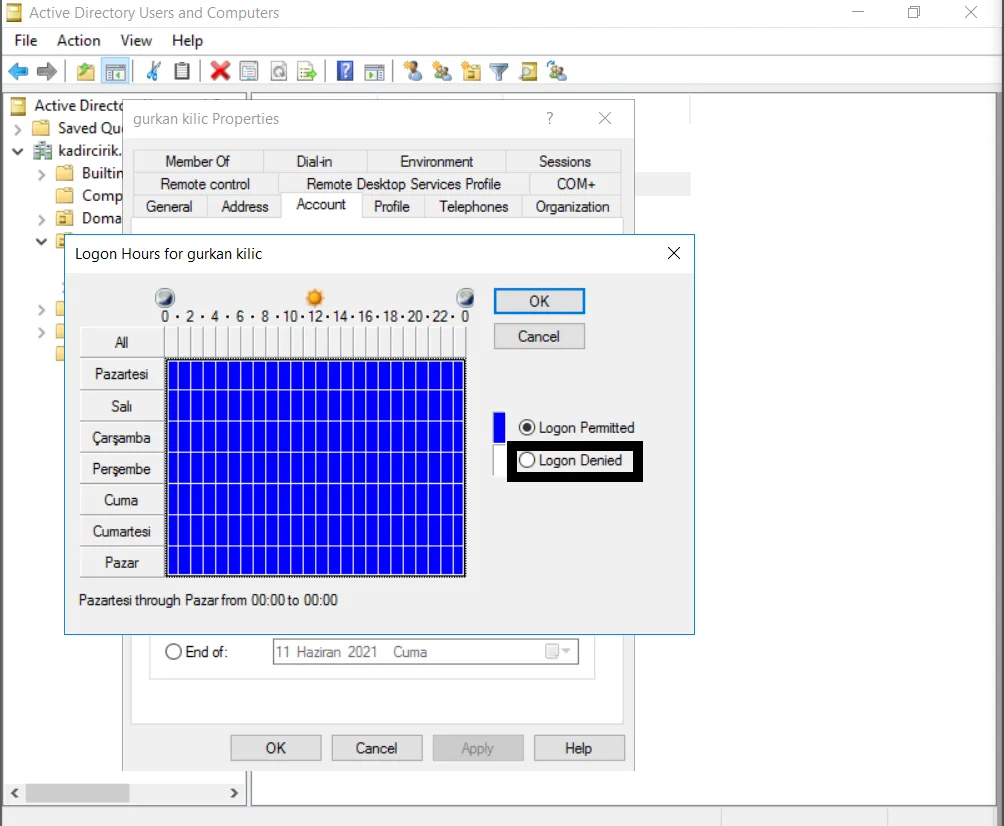
- As shown on the screen, the days and hours of the week are displayed here. We first select the whole area and choose “Logon Denied” to block the entire range, i.e., clear it.
- As shown in this image, having the whole area blue means the user can access the computers at any day or time they want.
- Now, in this section, you select the days and hours on which you want to permit logon. I applied a restriction of 8 to 16 every weekday. After making this selection, you click the “Logon Permitted” button again. Then click “OK” to save our changes and exit.
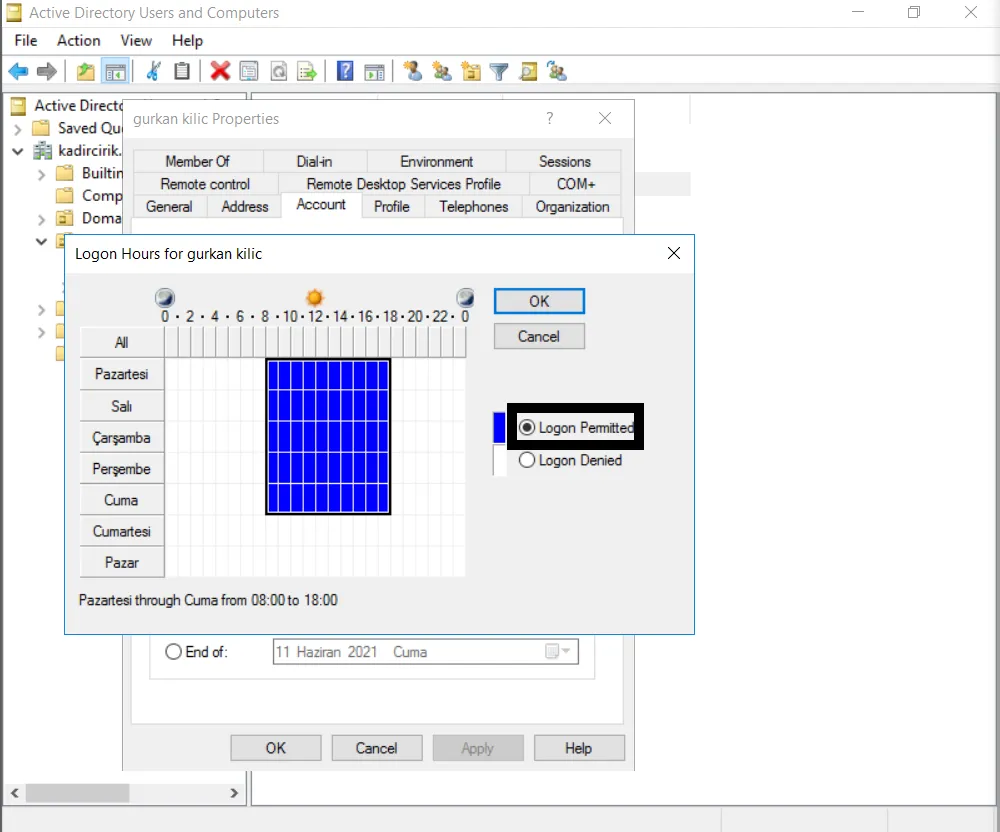
By following this approach, we have now applied a restriction to our user.
Thank you for reading this far. :)