Linux Commands to Know During the Incident Response Process
In this article, I'll cover the following commands you need to know during incident response processes on Linux systems: user account commands, log entry…

Greetings everyone. :)
In this article, I’ll cover the following commands you need to know during incident response processes on Linux systems;
- user account commands,
- log entry commands,
- system resources,
- services,
- processes,
- network settings commands
And we’ll also touch on how to detect anomalies in these areas during incident response.
Being able to detect any attack on systems is a very important step for Incident Response. The steps involved in Incident Response are quite broad. That’s why it’s better to start with small steps. While performing incident response, we always need to focus on the areas we think attackers are likely to compromise. This makes it considerably easier to detect attacks during incident response.
In this article, I’ll focus on how incident response is fundamentally carried out on Linux systems. Happy reading.
What Is Incident Response?
Incident response is defined as the action plan carried out before or at the moment a computer or network security incident occurs. For this reason, it’s very important for the people carrying out incident response to know what normal conditions look like on the systems. If they know what’s normal, they can easily detect abnormal conditions on the systems and thereby take control of the systems.
To resolve and make sense of incidents during incident response, the following should be done and known;
- Reviewing running processes
- Having contextual knowledge about physical memory
- Having detailed information such as hostname, IP address, operating systems, etc.
- Gathering information about system services
- Identifying all known and unknown users logged on to the system
- Reviewing network connections, open ports, and network activity
- Identifying and reviewing existing files
1. User Account
It’s quite important for the person performing incident response to investigate user account activity. This allows us to make sense of logged-on users, existing users, normal or unusual logons, failed logon attempts, permissions, etc. There are various commands for checking user account activity. These commands are as follows;
cat /etc/passwd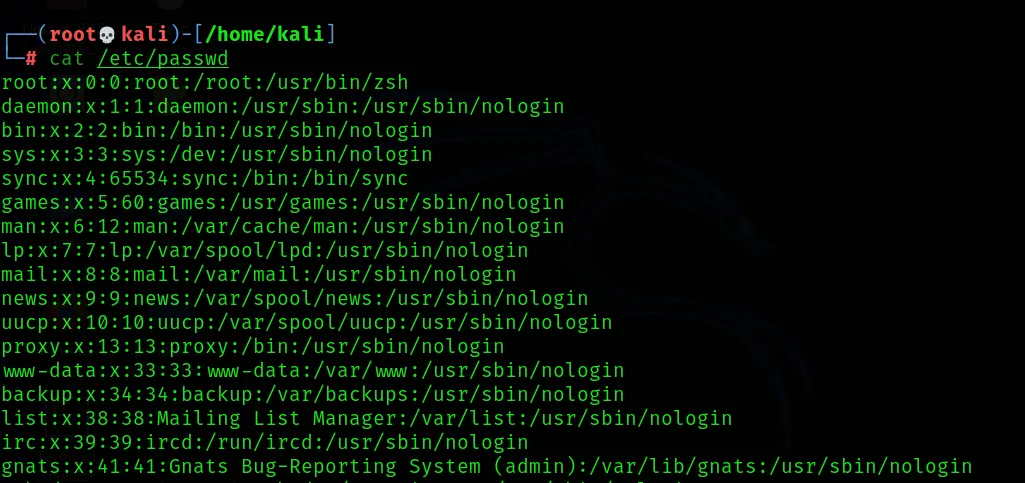
- In Linux, “Setuid” is a unique file permission. That is, when a user wants to change their password on a Linux system, they can run the “passwd” command. When the root account is flagged as setuid, temporary permission can be obtained.
passwd -S [Username]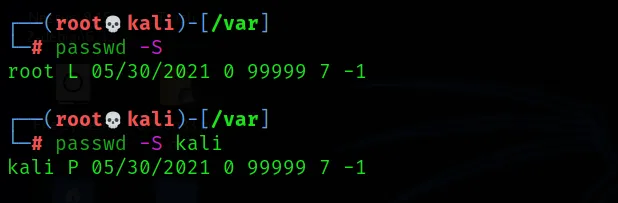
Grep is used to search plain text for lines matching a regular expression. It’s used to view files with ‘UID 0’ in the “:0: /etc/passwd” file.
grep :0: /etc/passwdResults can also be displayed here by changing the “UID” value.



- The following command is used to detect whether attackers have created a temporary user in order to carry out their attacks.
find / -nouser -print-
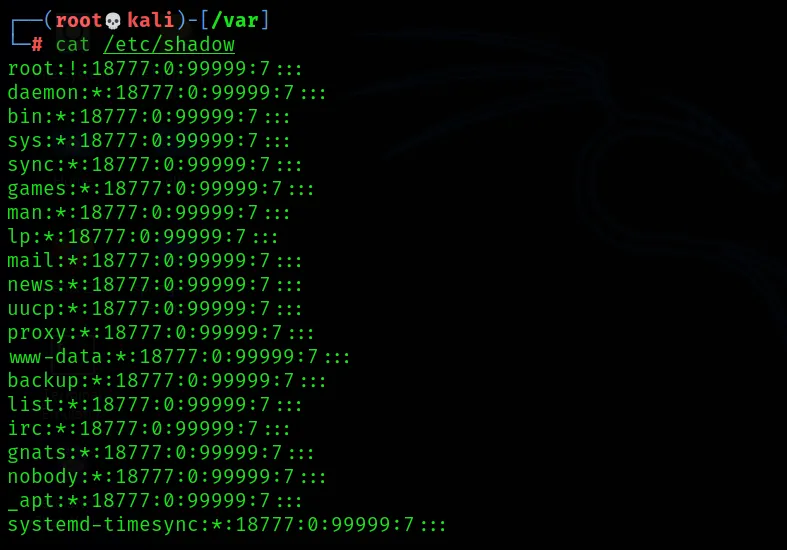
/etc/shadow contains the encrypted password and password-related details, and is accessible only to root users.
cat /etc/shadow
- The Group file displays information about the groups used by a given user.
cat /etc/group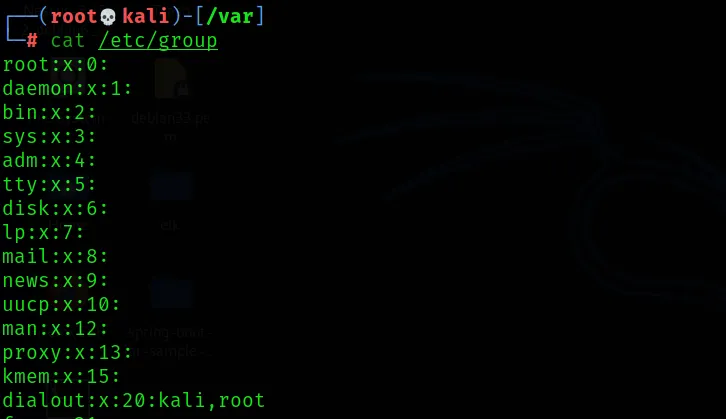
- The following command is used to display user information along with their group privileges.
cat /etc/sudoers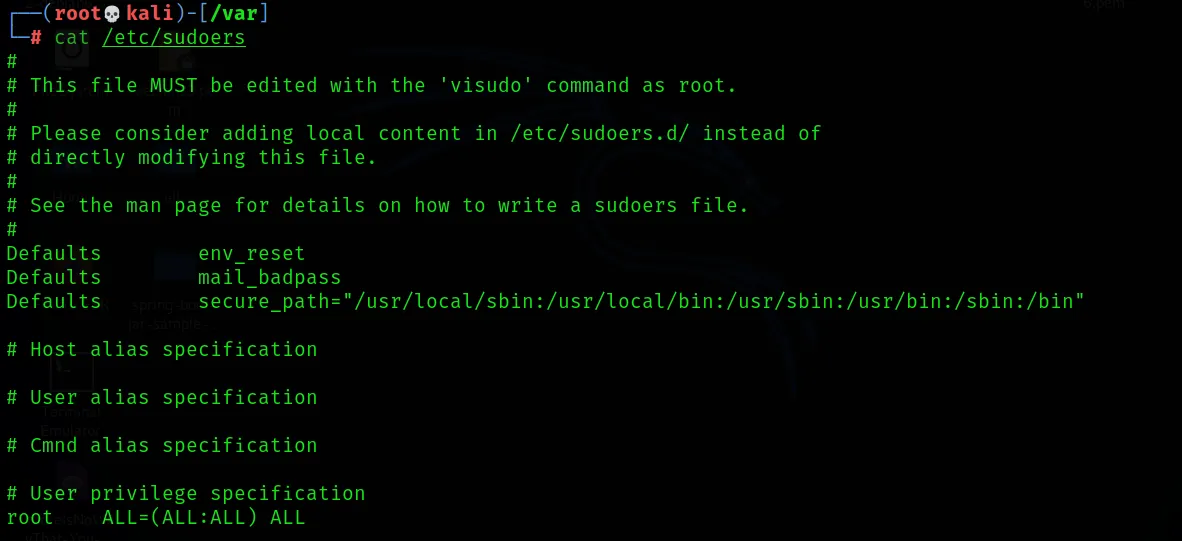
2. Log Entries
The following command is used to display the most recent logon results for a specific user, or for all users on a Linux system;
lastlog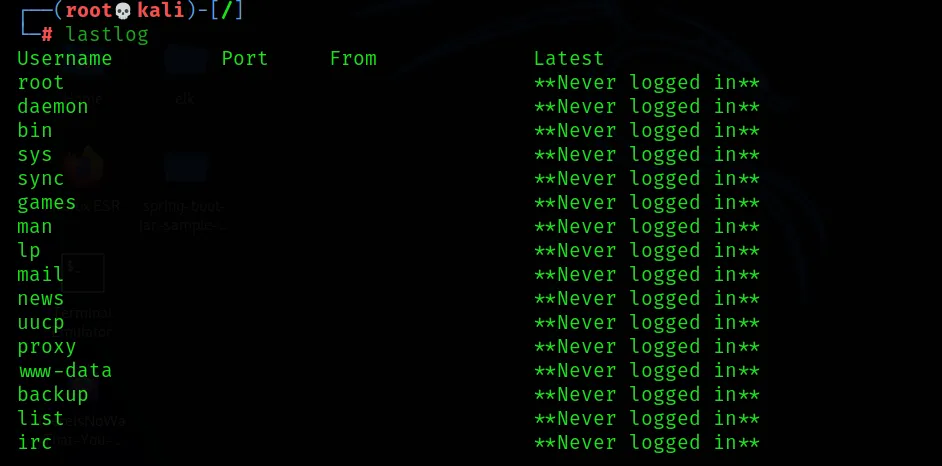
- For logon/logoff information of the most recently logged-on users;
last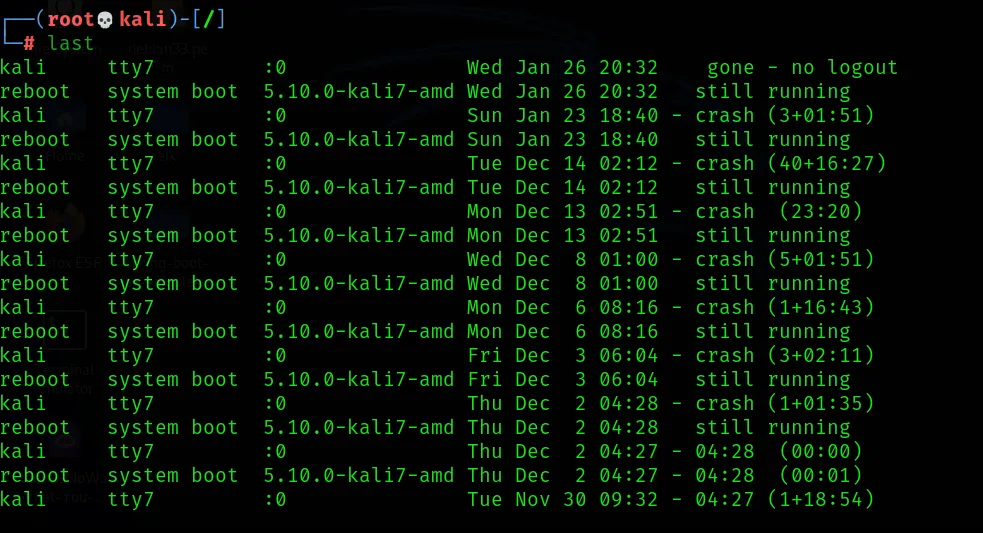
- To list the last 20 logons of the kali user;
last root | head -20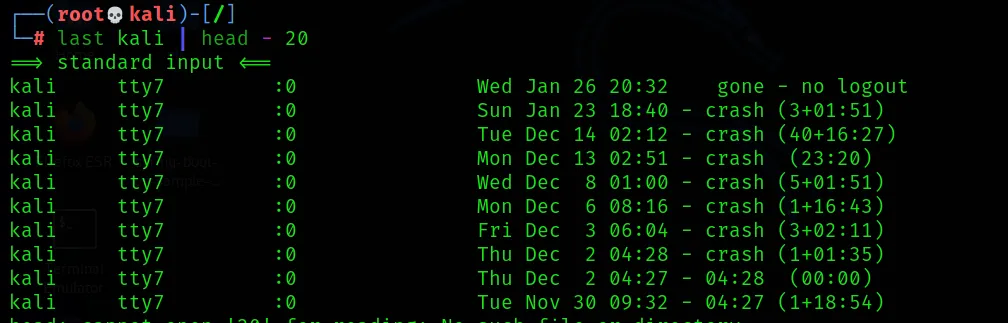
- To display all user information;
nano /var/log/wtmp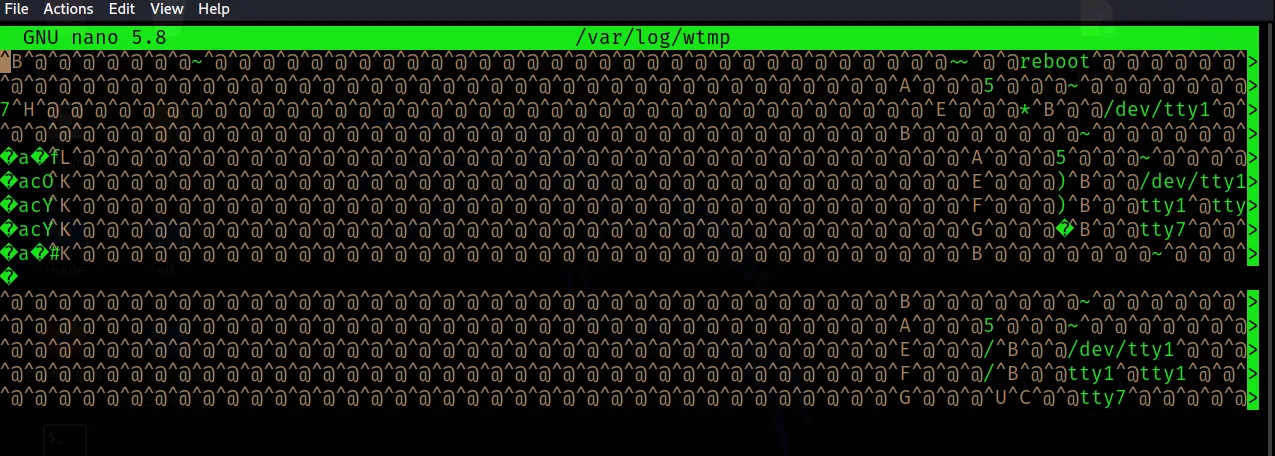
- To display all events related to user authorization;
cat /var/log/auth.log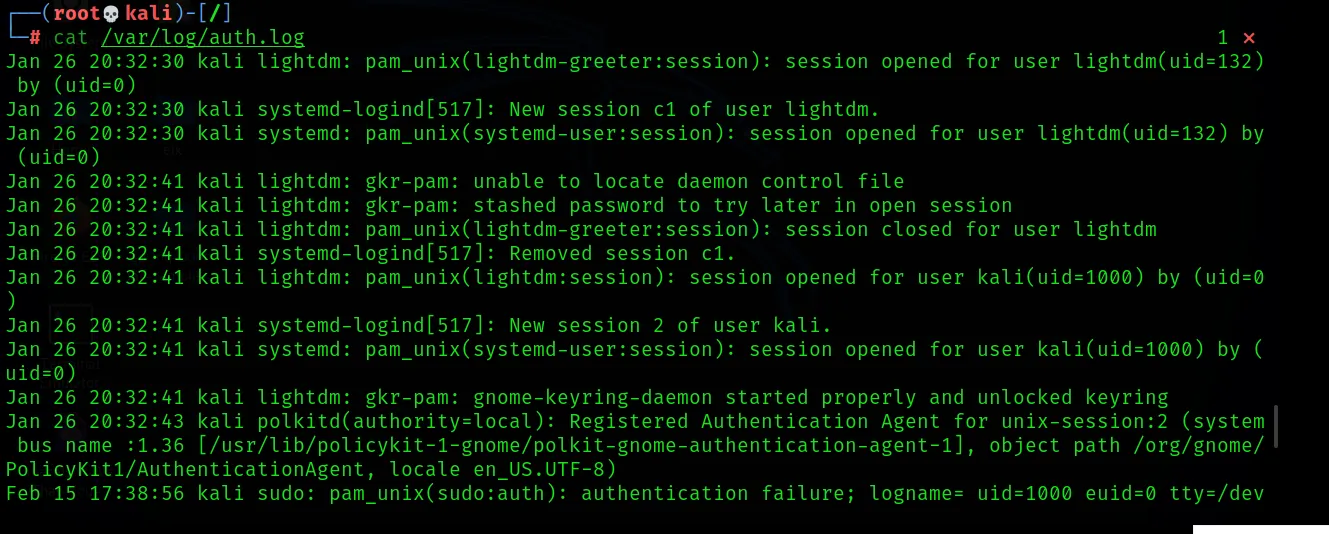
To identify and view any SSH & telnet logon activity or authentication on the system, you can go to the /var/log/ directory and then run the following command;
tail /var/log/auth.log3. System Resources
System resources cover a lot of information here, such as system log information, system uptime, memory space, and system usage, etc.
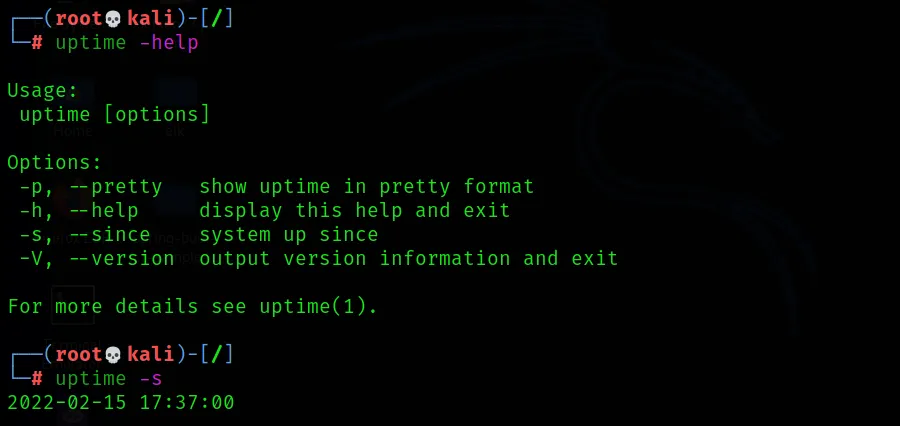
- The “uptime” command is used to find out whether your Linux system has been running overtime, or to see how long the server has been running, the current system time, how many users are currently logged on, and the system’s load averages.
uptime
- The following command is used to display the system’s memory usage on Linux, the physical and swap memory used on the system, as well as the buffers used by the kernel.
free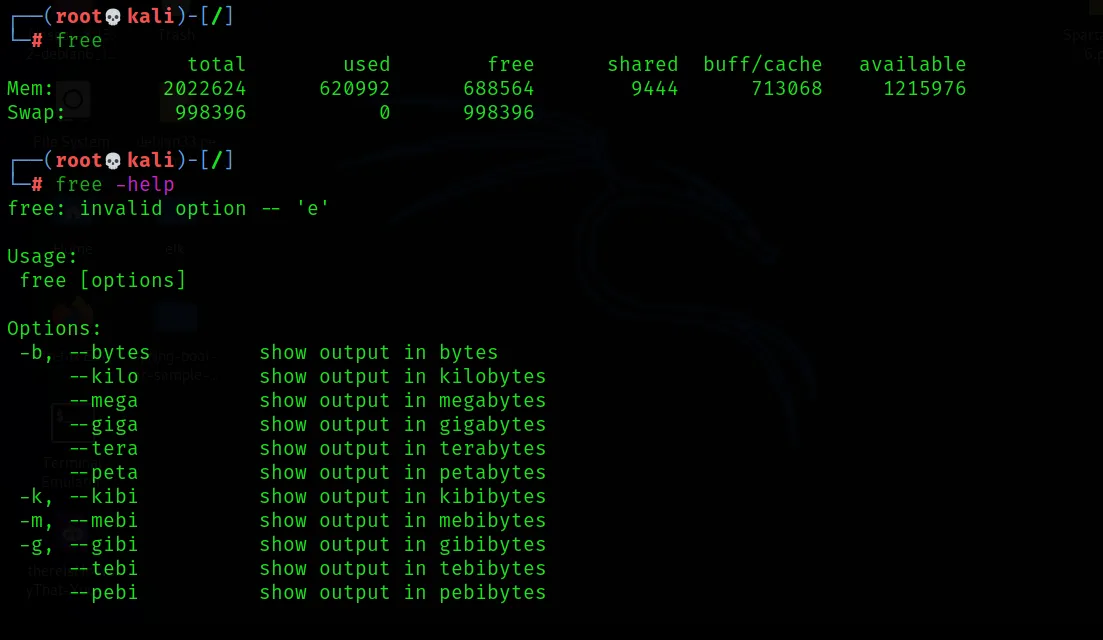
During an incident response, the following command is used to check detailed information such as RAM, available memory, buffers, and swap space on the system.
cat /proc/meminfo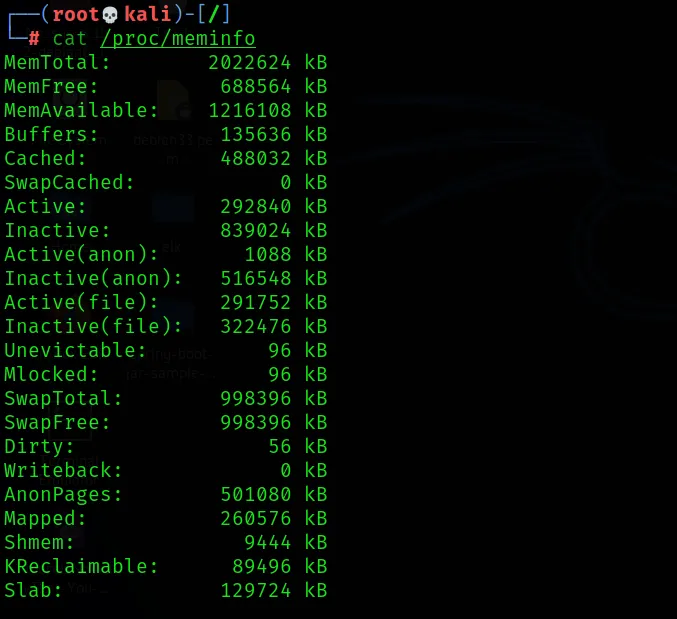
4. Process
The “TOP” command monitors the server’s status in real time. When you examine this, you get;
- pid, i.e. process id values,
- the user information running the process,
- the number of running processes,
- the priority level value,
- how much memory the running processes occupy,
- and information such as the process’s running time.
top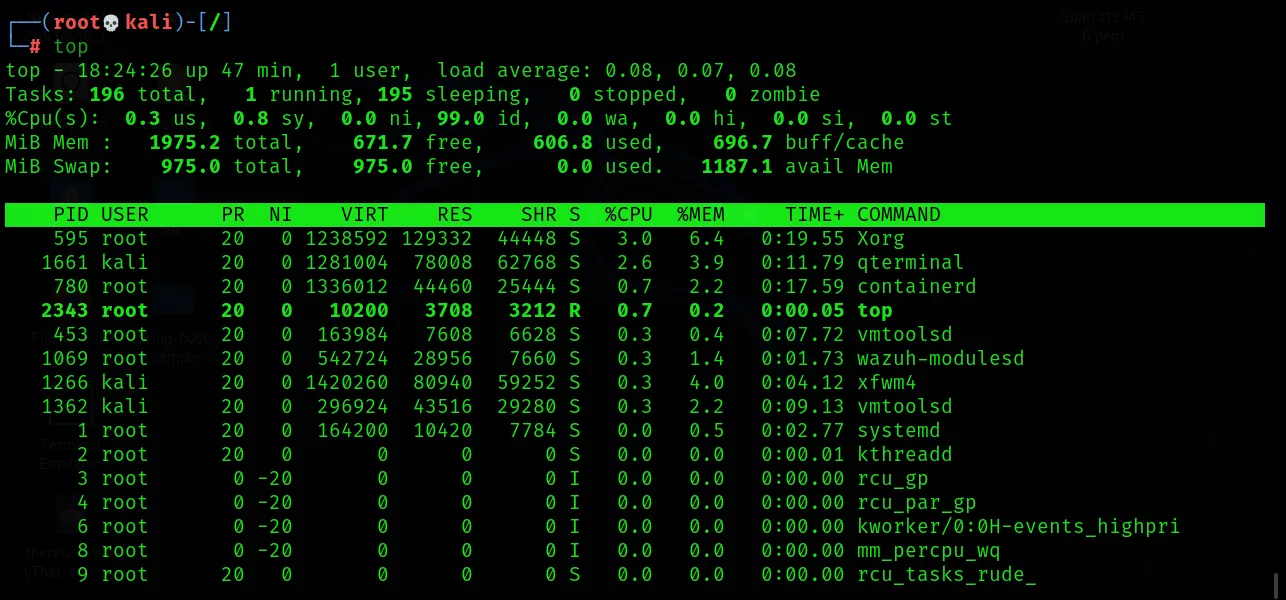
- Displays processes while ignoring pending or zombie processes.
top -i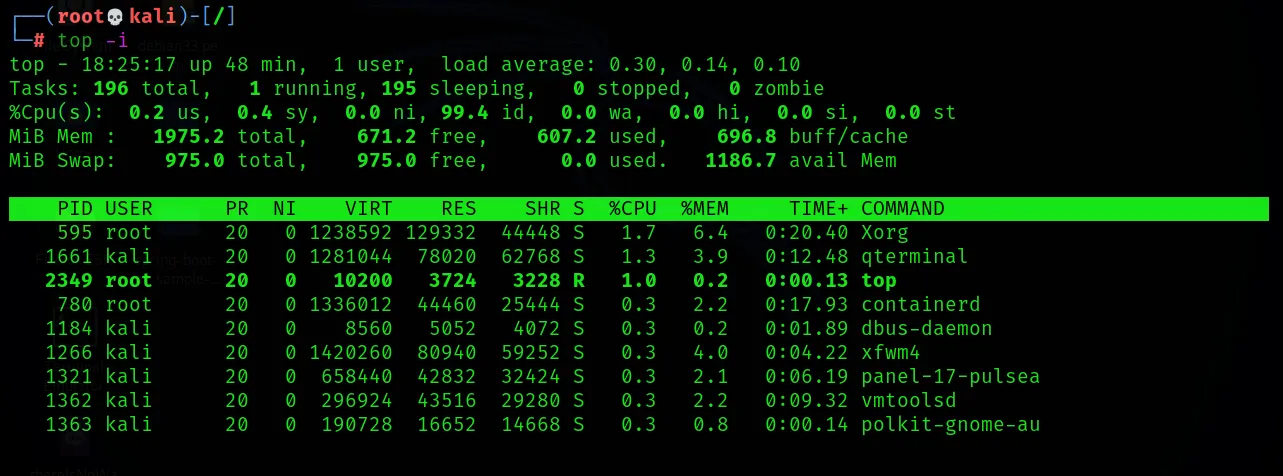
- To see your Linux system’s process status, the currently running processes, and PIDs. The following command is used to identify abnormal processes that might indicate any malicious activity on a Linux system.
ps aux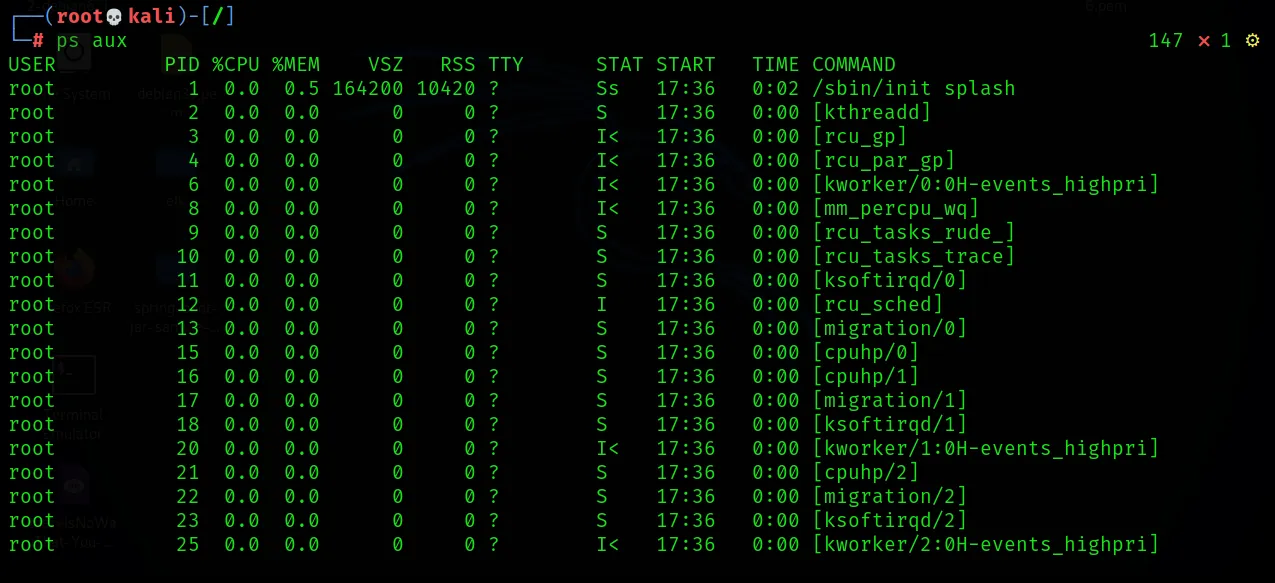
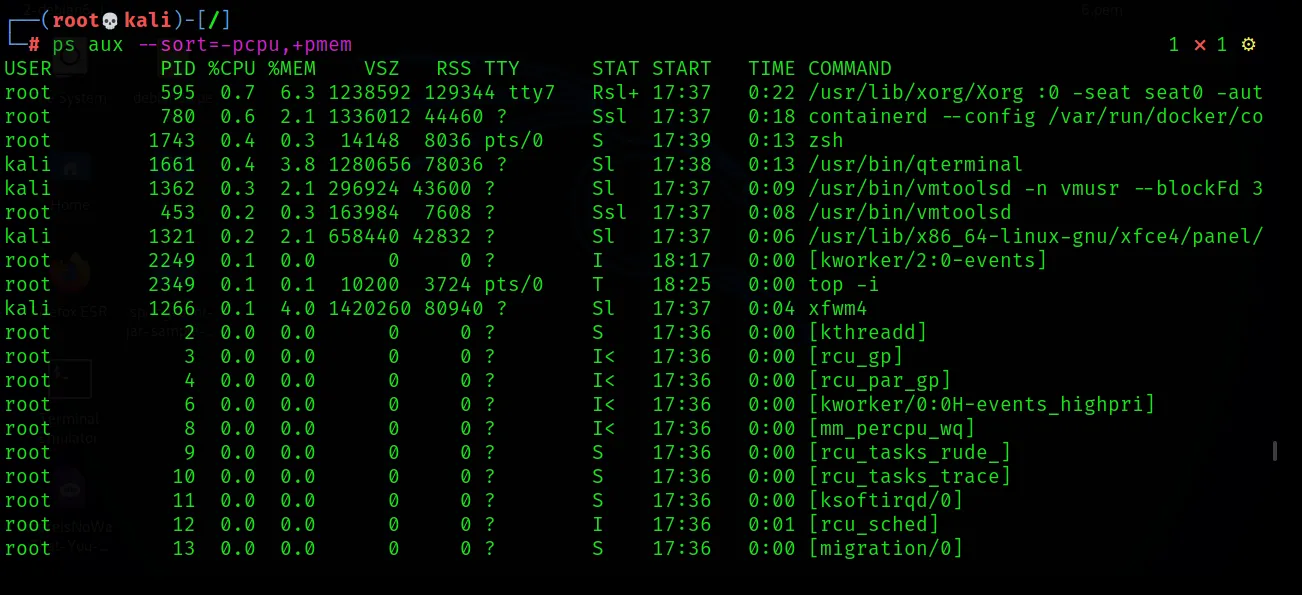
- The following command is used to display more details about a specific process.
lsof –p [pid value]5. Services
Services on a Linux system can be classified as system services and network services. System services include the status of services, cron, etc. Network services include file transfer, domain name resolution, firewalls, etc. An incident responder makes use of services to determine whether there’s any anomaly among them.
- You can use the following to find abnormally running services:
service –-status-all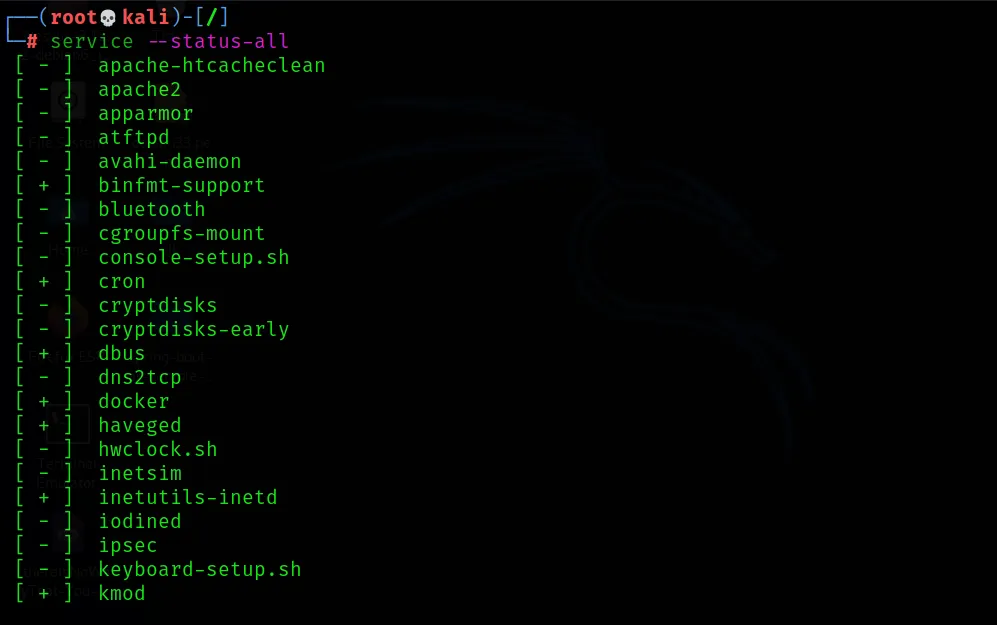
- The following command is used to search for and detect suspicious scheduled tasks.
cat /etc/crontab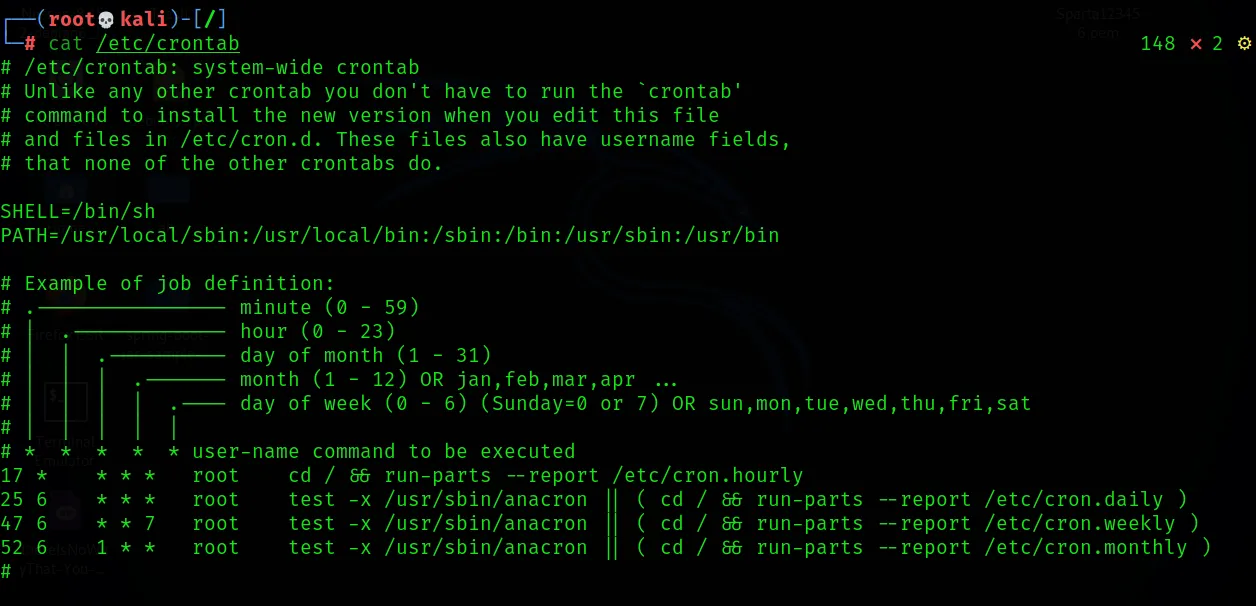
- The following command is used to check the file that resolves hostnames or domain names to IP addresses, which is useful for testing changes made to a website or SSL configuration.
more /etc/host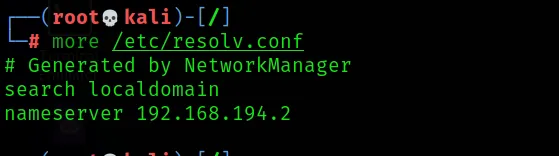
- To display information logged by the kernel;
cat /var/log/kern.log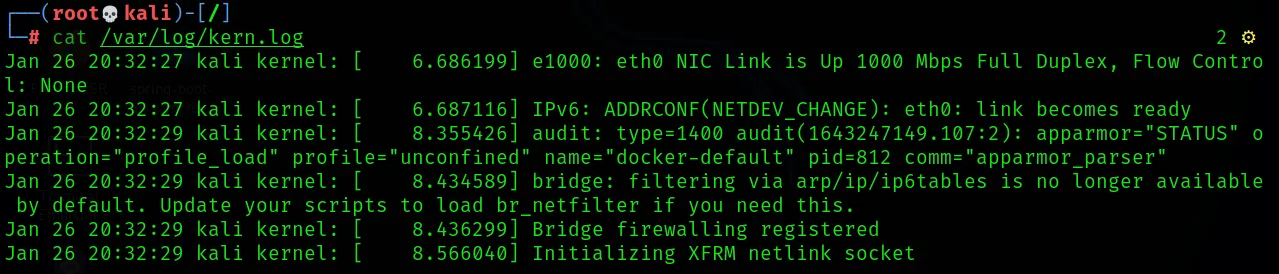
- To display information about failed logon attempts;
cat /var/log/faillog
6- Network Information
The command we’ll use to see all network interfaces:
ifconfig -a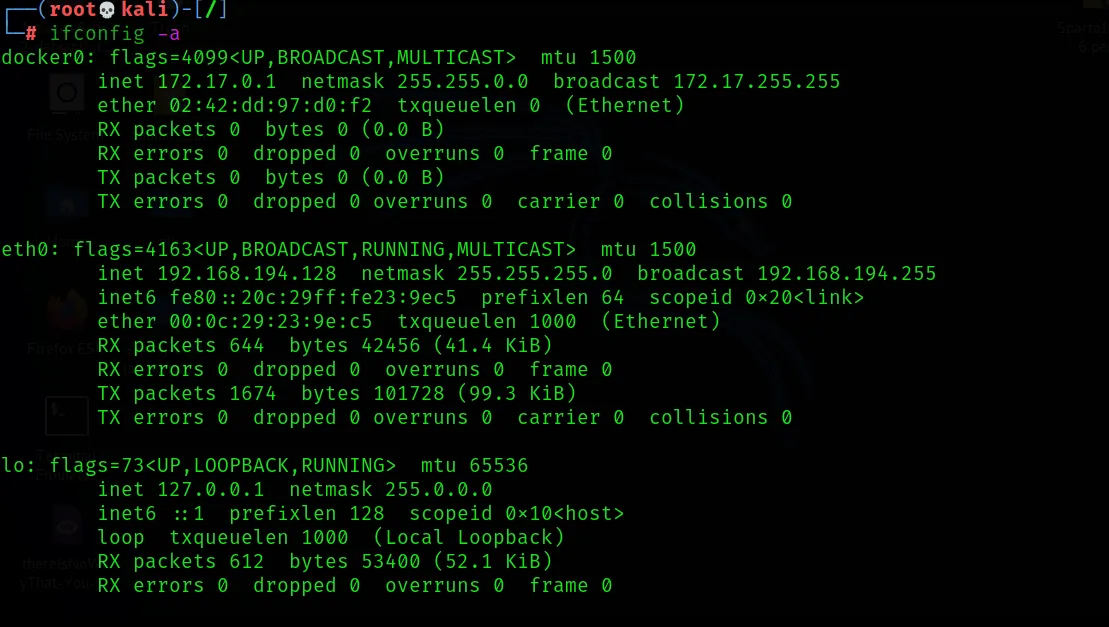
To display processes listening on ports along with their PIDs
lsof -i
To display all listening connections on the network:
netstat -nap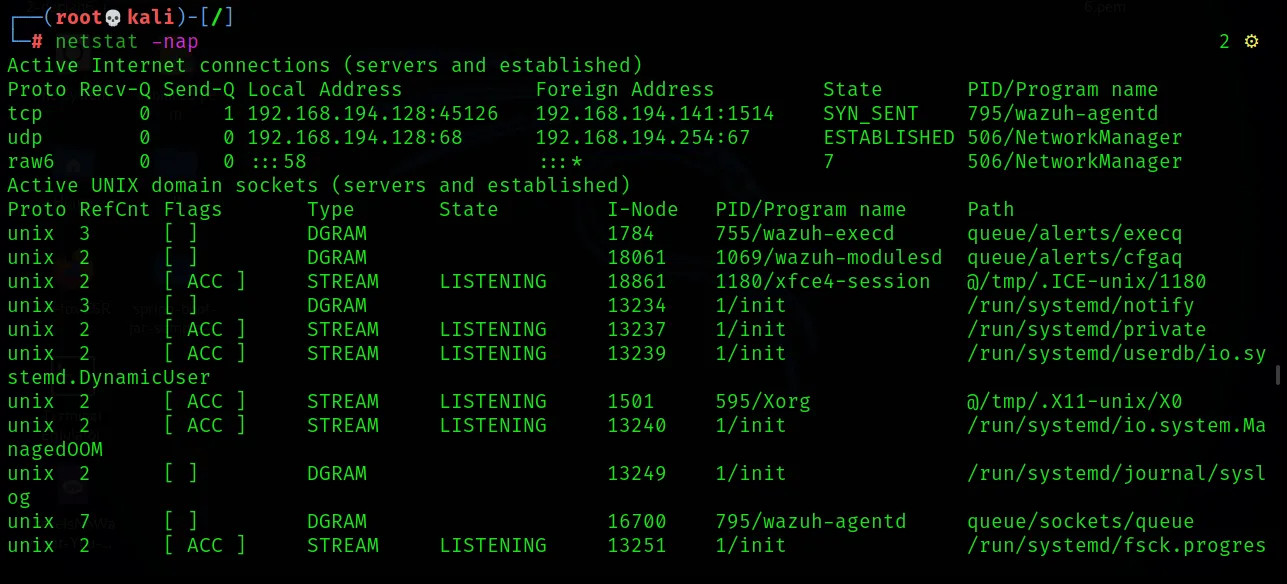
7- Files
It’s very important to notice files on the system that look abnormal during incident response.
The following command can be used to identify excessively large files on your system along with their permissions and targets.
find /home/ -type f -size +512k -exec ls -lh {} \;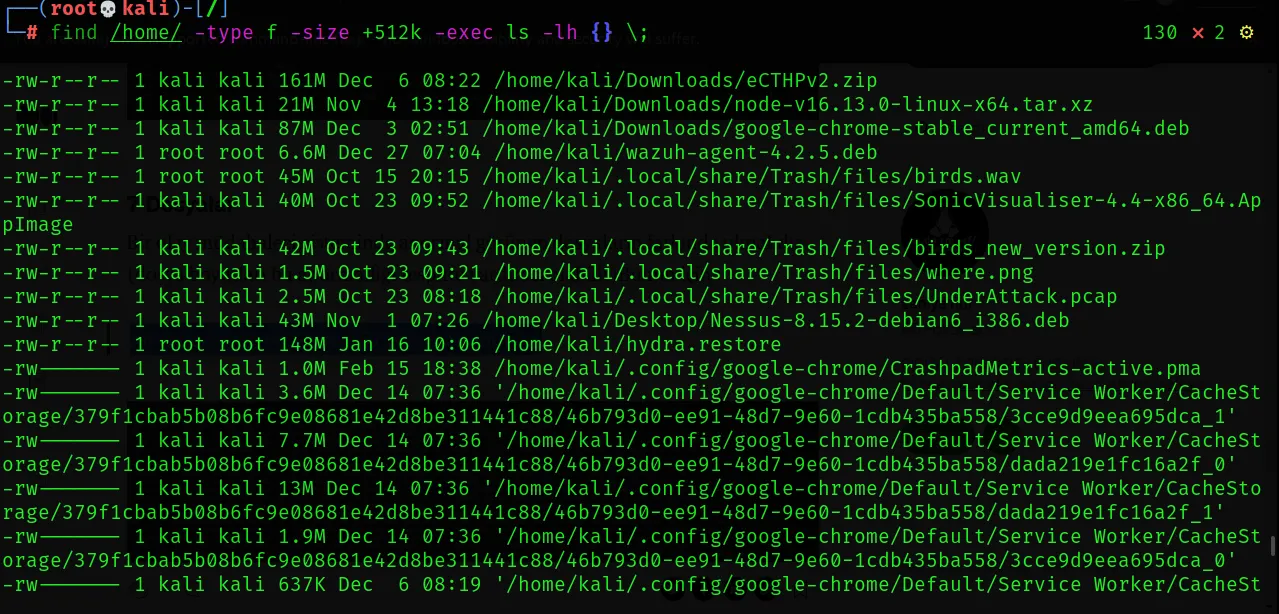
ls -lt : displays the last modification time of logs
ls -lu : displays the last access time of the log file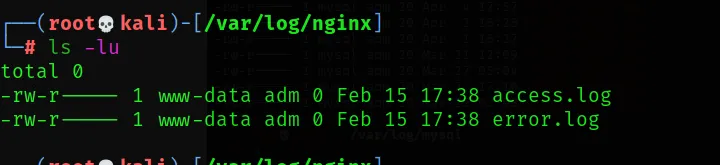
ls -lc displays the last time the access permissions of the log file were changed.
- To find files created or modified within the last 50 days
find /home -mtime 50
- To find which files were accessed within the last 50 days:
find /home -atime 50
- To find files created within the last 1 hour:
find /home -mmin -60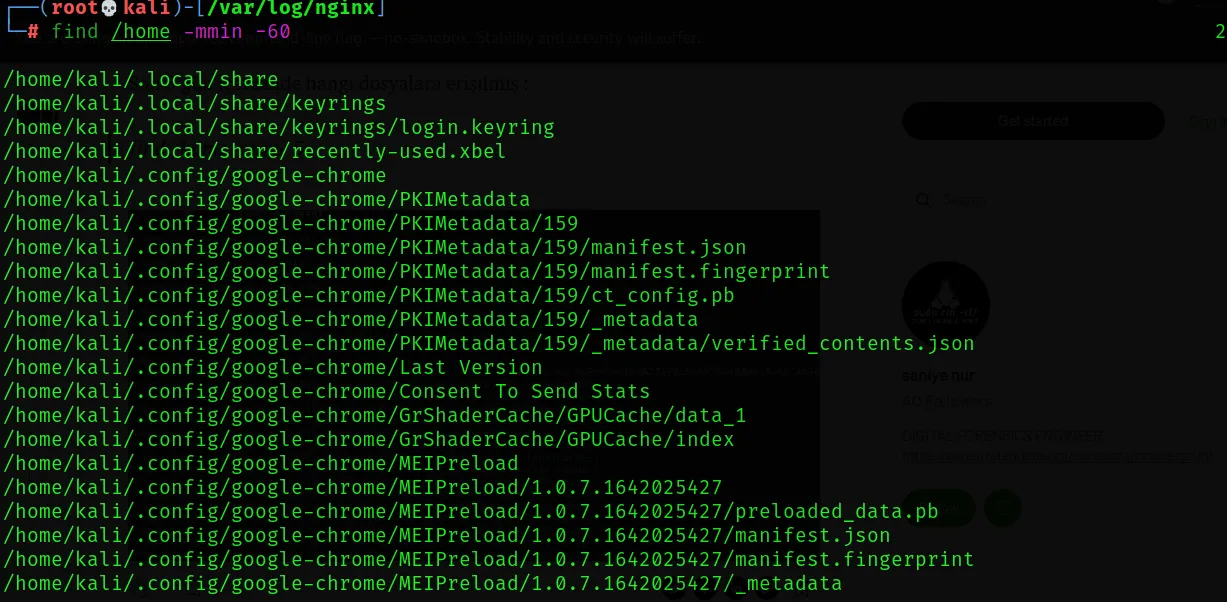
I’ve walked you through the commands used for Linux systems during incident response in a hands-on way. I hope you found it useful. Thanks for reading this far. :)