Windows Commands Every Incident Responder Should Know
In this article I'll cover the commands you need to know when investigating Windows systems. The commands I'll cover here are the fundamental commands an…

Hello everyone,
In this article I’ll cover the commands you need to know when investigating Windows systems. The commands I’ll cover here are the fundamental commands an incident response analyst needs to know.
In the article, I’ll go through the following topics in order.
- User accounts,
- Processes,
- Services,
- Task Scheduler,
- Run/Startup,
- Registry entries,
- Active TCP and UDP ports,
- File shares,
- Files,
- Firewall settings,
- Open sessions,
- Log entries
User Logins
Investigating user activity is very important during the Incident Response process. It’s used to find out whether there are any suspicious user accounts or whether any restriction has been applied to a user. It also lets us check a user account to see which user is currently logged on and what type of user account they have.
User accounts can be viewed as follows:
To view user accounts in the GUI, we press “Win+R” and type the following command.
lusrmgr.msc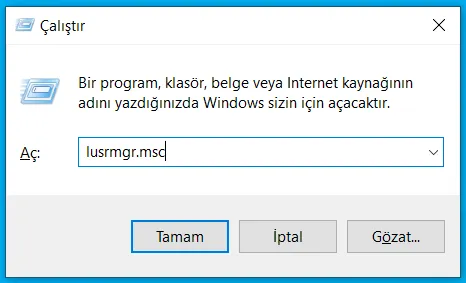
To view the user accounts on the system and what type each account is, we open a command prompt and type the following command.
net user
To view local user accounts on the system, the net localgroup command is used together with the group name. An administrator can use this command to add a user to a group, remove a user, create a new group, or delete an existing group.
After opening the command line, we type the following commands:
net localgroup administrators
To view local user accounts, their names, and descriptions, PowerShell is opened as administrator and the following command is run:
Get-LocalUser
Processes
The “tasklist” command is used to get a list of all processes running on the system. Using this command, you can obtain a lot of relevant information, such as memory usage, uptime, file names, and running services.
To view processes, as mentioned above, we press “Win+R” and then type the following command.
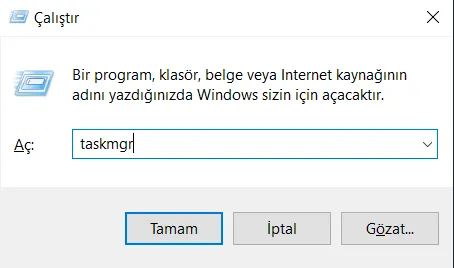
Then we click “OK” and view all the processes running on the system. This way, we can track the processes running on the system.
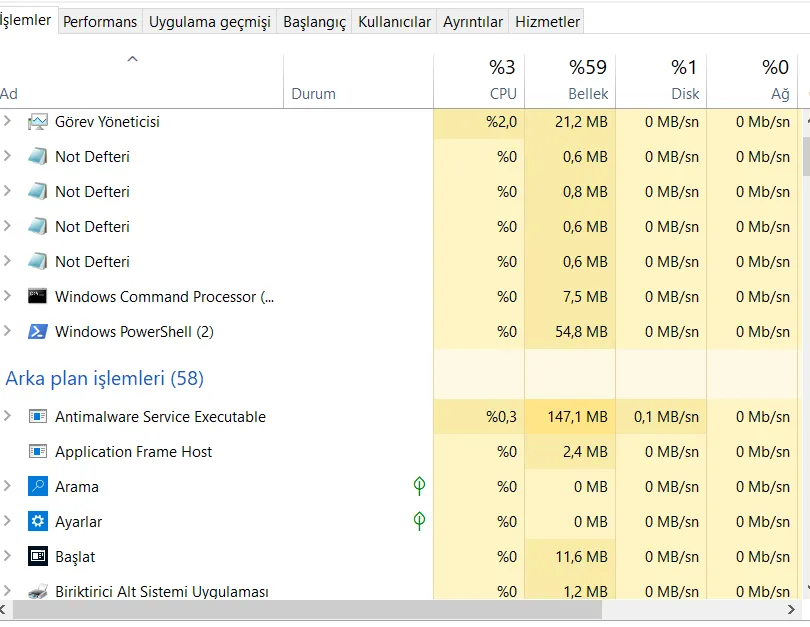
To see the Process ID (PID), session name, and amount of memory used by all running processes, we run the following command:
tasklist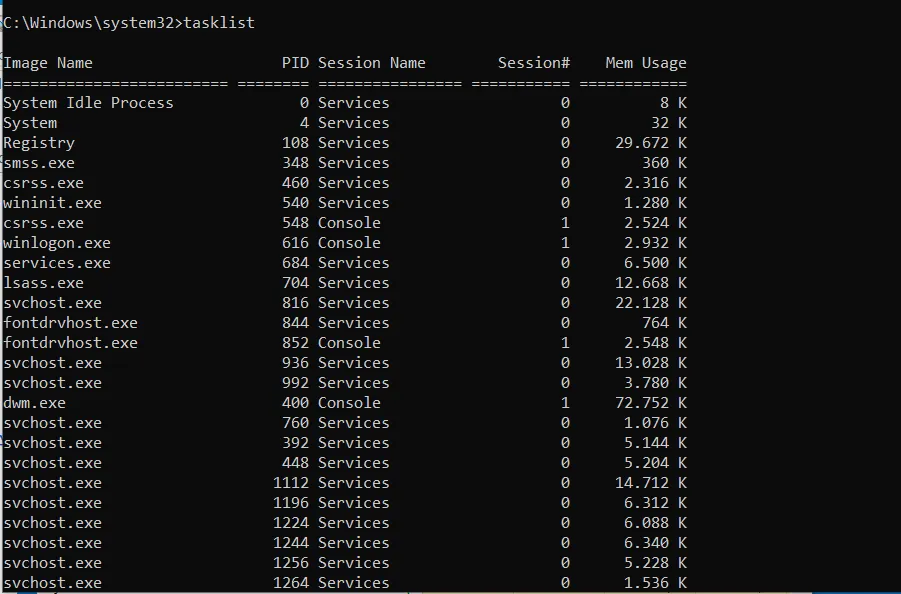
To view a list of all active processes running on the computer, we open PowerShell as administrator and type the following command.
get-process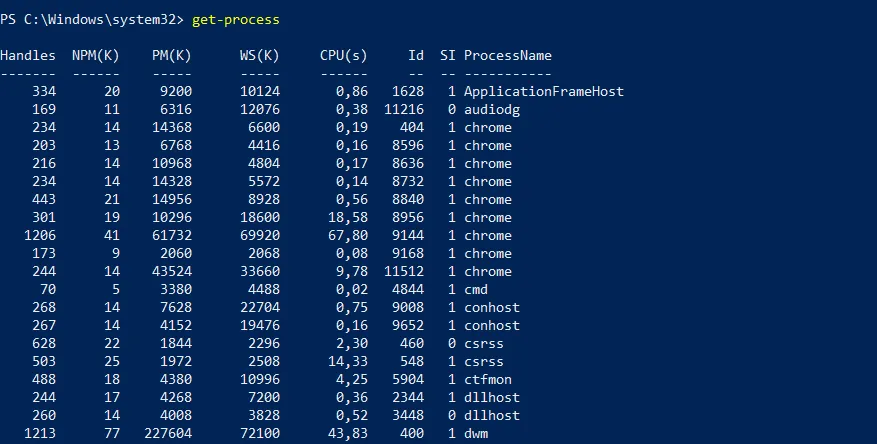
Windows systems have an extremely powerful tool in WMIC. WMIC is extremely important and useful during incident response. This tool can be used both in Command Prompt and in PowerShell. It also lets us perform anomaly detection on the system.
wmic process list full
We’ve identified which process is generating abnormal network activity. Next, to get more detailed information about process IDs, process name, and parent process ID, we run the following command.
wmic process get name,parentprocessid,processid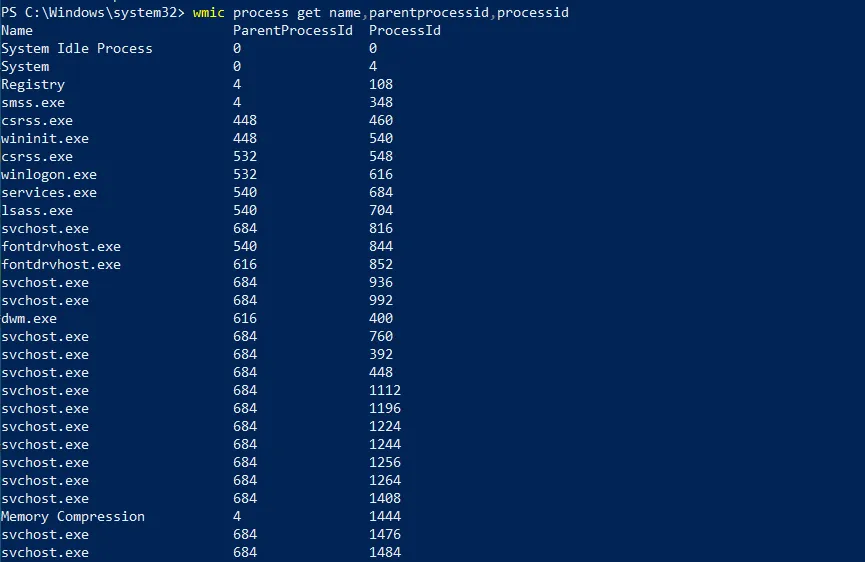
To find the path of the WMIC process, we type the following command into PowerShell.
wmic process where 'ProcessID=PID’ get CommandLine
Services
This lets us view whether there is any abnormal service running on the system, or whether certain services are running properly.
We do “Win+R”, and type the following command:
services.msc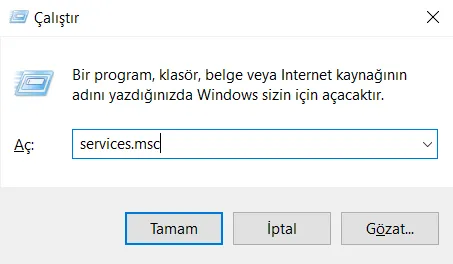
Here we view the list of processes.
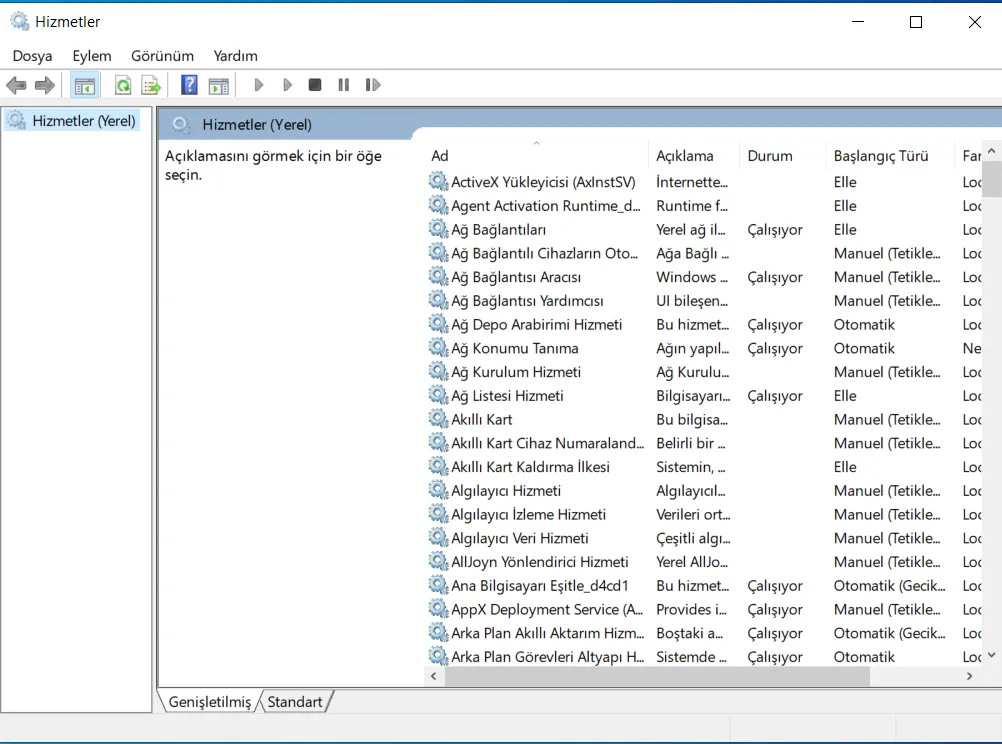
To start and view the list of services running from the command line, we type the following command as administrator.
net start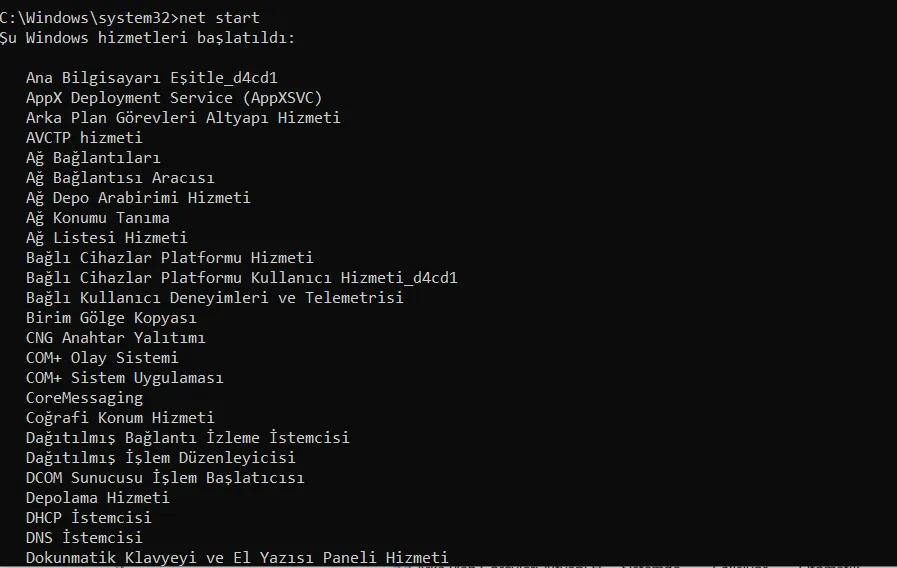
To see whether a service is running, and for more information;
sc query | more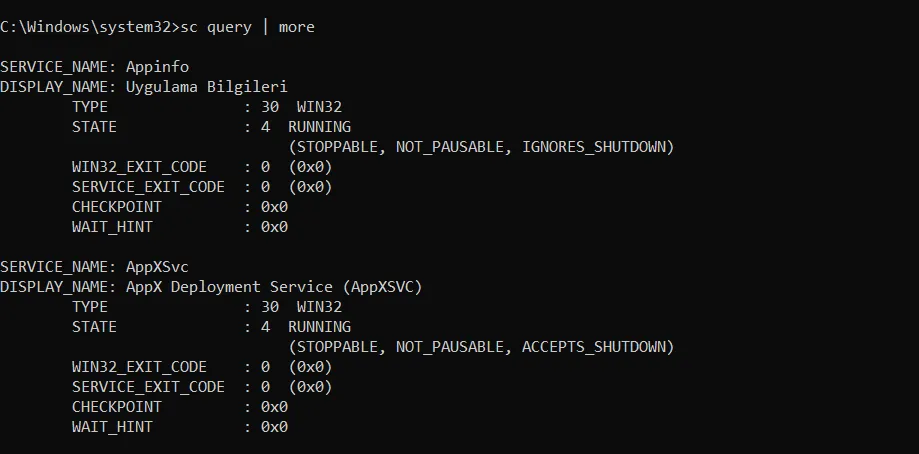
If we want to view, from the command line, the list of processes associated with and running alongside a given one,
tasklist /svc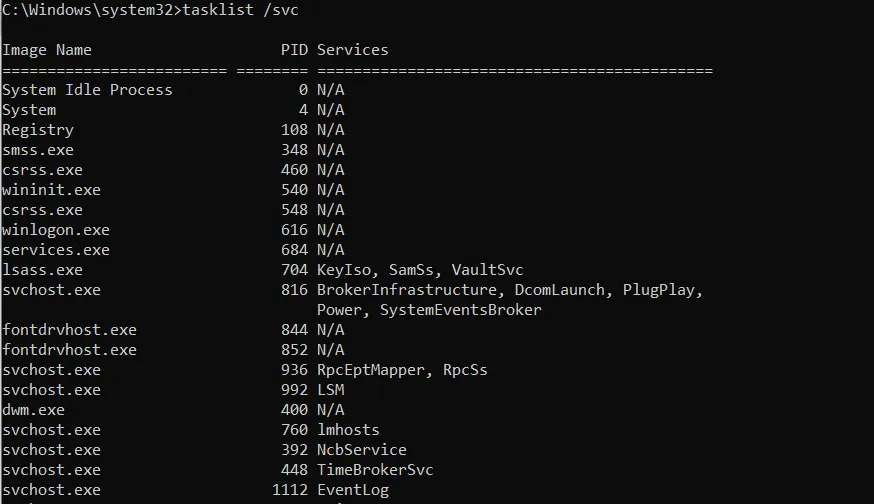
Task Scheduler
Task Scheduler is a Windows component that allows scripts or programs to be launched at a predefined time or after certain intervals. This is also one of the most important areas to check during Incident Response processes. This is where suspicious scheduled tasks can be spotted.
To view Task Scheduler in the GUI;
C:\ProgramData\Microsoft\Windows\Start Menu\Programs\Administrative Tools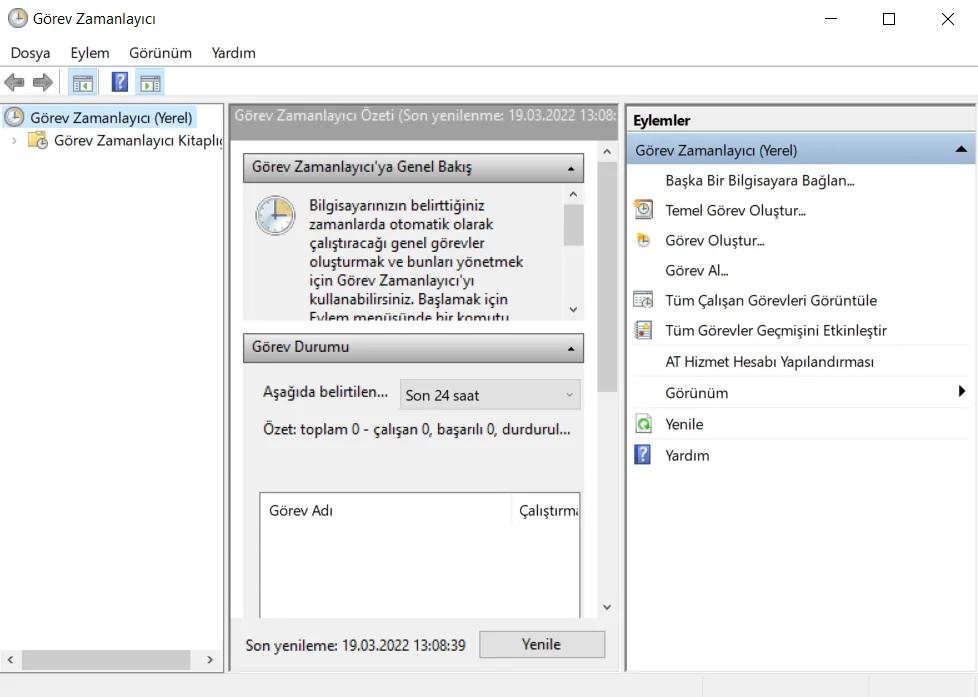
To view Task Scheduler from the command line, we run the command prompt as administrator and type the following command:
schtasks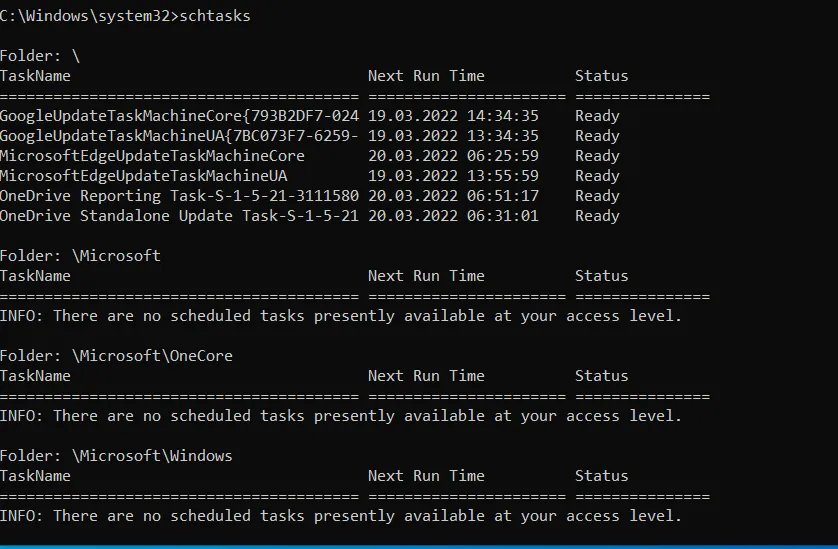
Run/Startup
The Startup folder in Windows automatically launches applications when you log on. Because of this, applications that run automatically absolutely must be checked and monitored.
We open Task Manager. Here we can see which applications are enabled and which are disabled.
taskmgr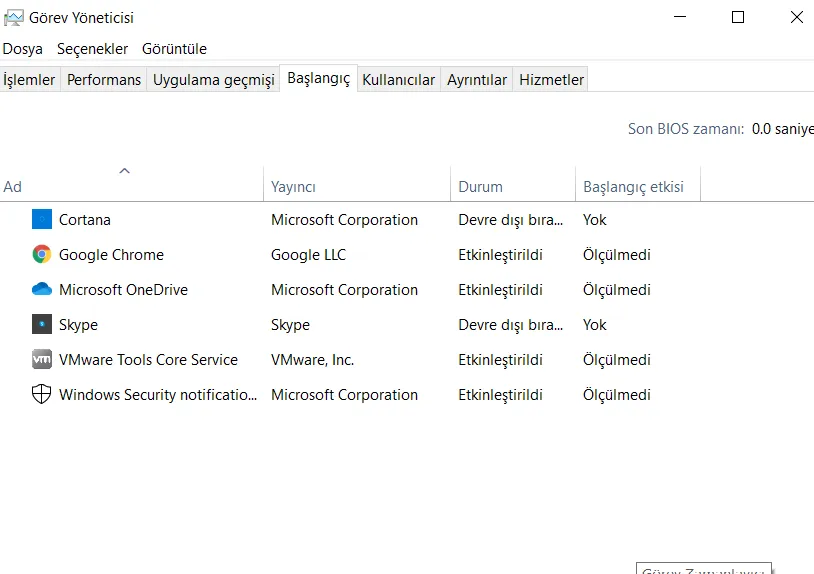
To view startup applications in PowerShell, we run PowerShell as administrator and type the following command:
wmic startup get caption,command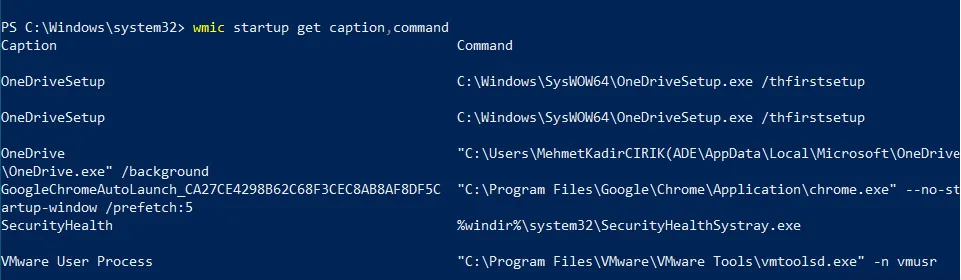
To see a detailed list of AutoStart, i.e. automatically launched applications, in PowerShell, we run it as administrator and type the following;
Get-CimInstance Win32_StartupCommand | Select-Object Name, command, Location, User | Format-List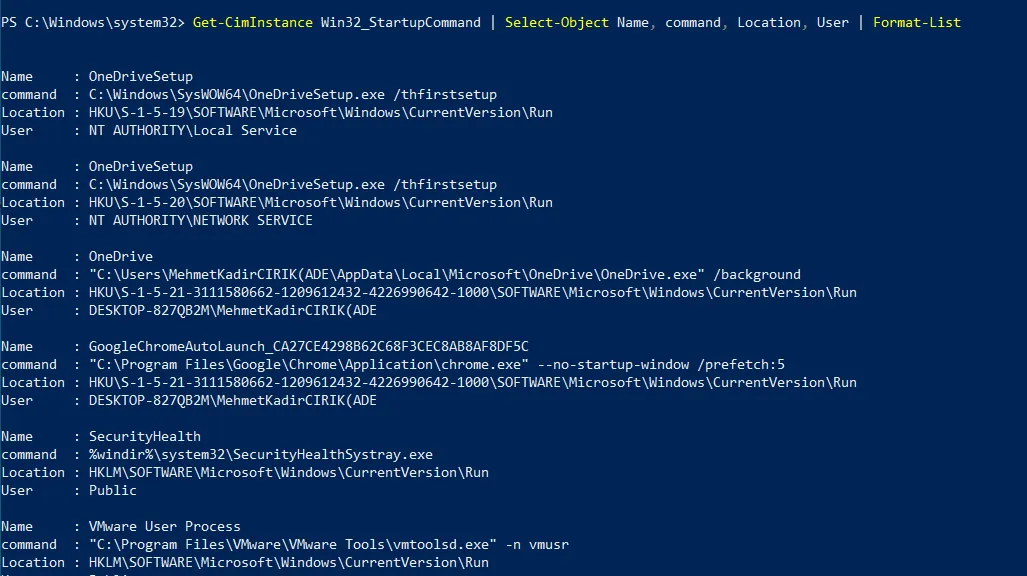
Registry Entries
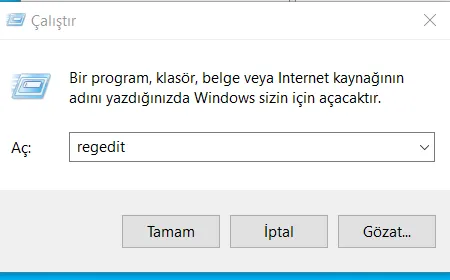
“Win+R” > “regedit”
This is how the Registry is displayed.
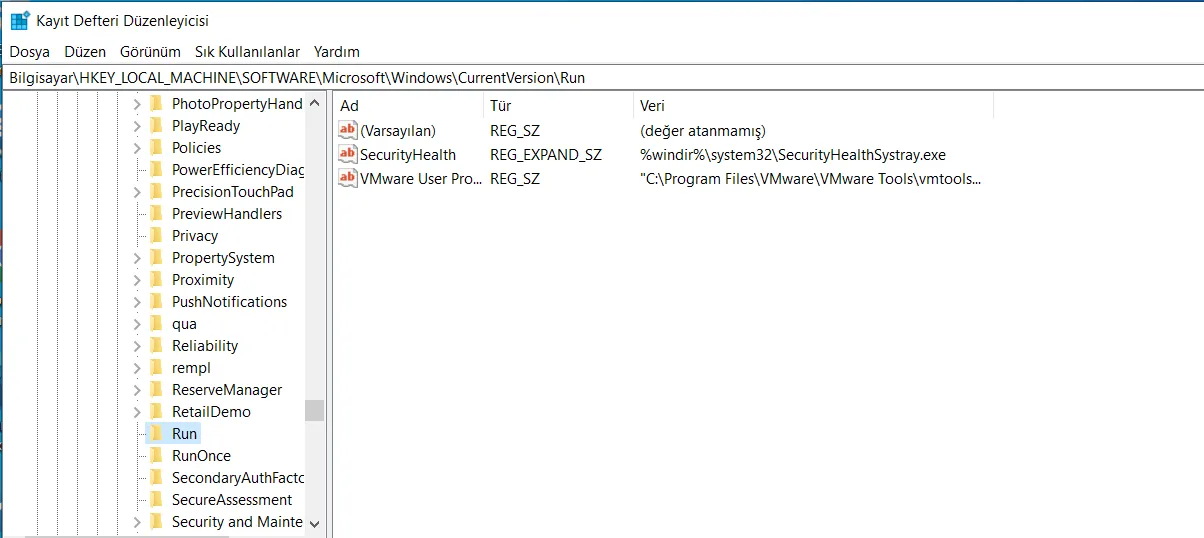
To view it in PowerShell;
reg query HKLM\SOFTWARE\Microsoft\Windows\CurrentVersion\Run
reg query HKEY_CURRENT_USER\SOFTWARE\Microsoft\Windows\CurrentVersion\Run
The following command is used to remove registry entries;
Remove-ItemProperty -Path HKLM:\SOFTWARE\Microsoft\Windows\CurrentVersion -Name PSHomeActive TCP and UDP Ports (the netstat command)
This is where we get detailed information about inbound and outbound connections on the network, routing tables, listening ports, and usage statistics.
netstat -ano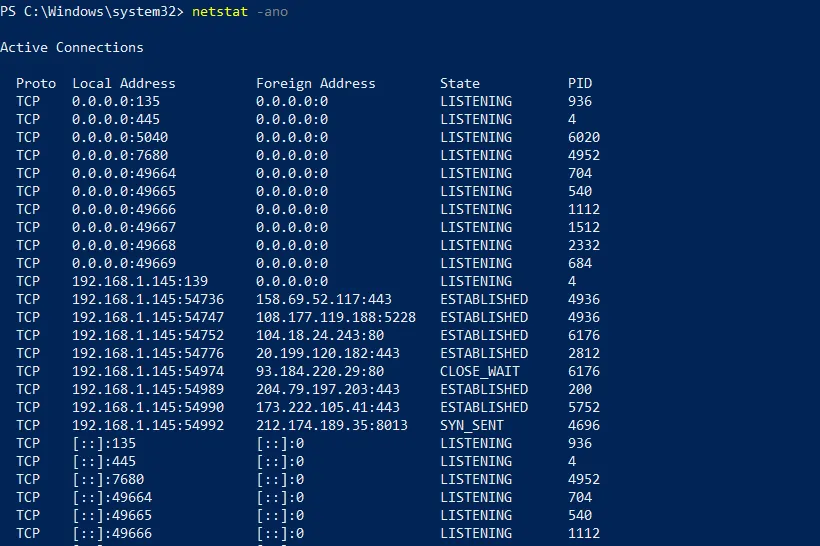
A different command can also be run in PowerShell to view the IP address and local ports.
Get-NetTCPConnection -LocalAddress 192.168.1.145 | Sort-Object LocalPort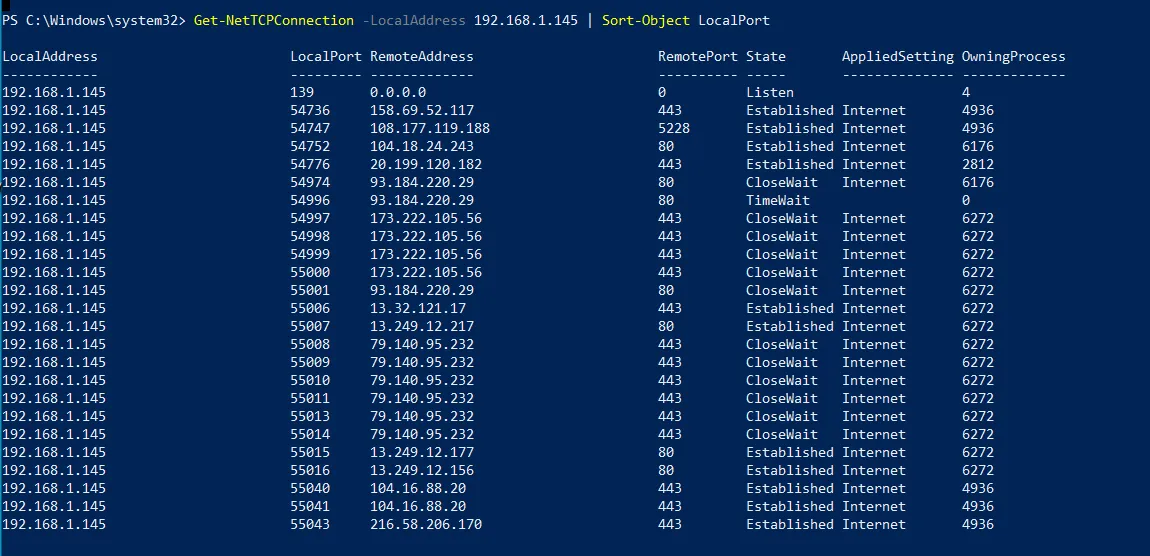
File Shares
The following command can be used in PowerShell to view file shares.
Get-SMBShare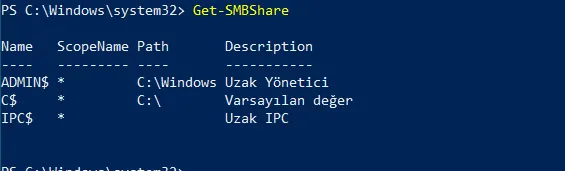
Files
The “forfiles” command is used to view files that may be malicious or that have a specific extension. Forfiles is a command-line utility.
For example,
To view .exe files along with their paths on the command line;
forfiles /D -10 /S /M *.exe /C "cmd /c echo @path"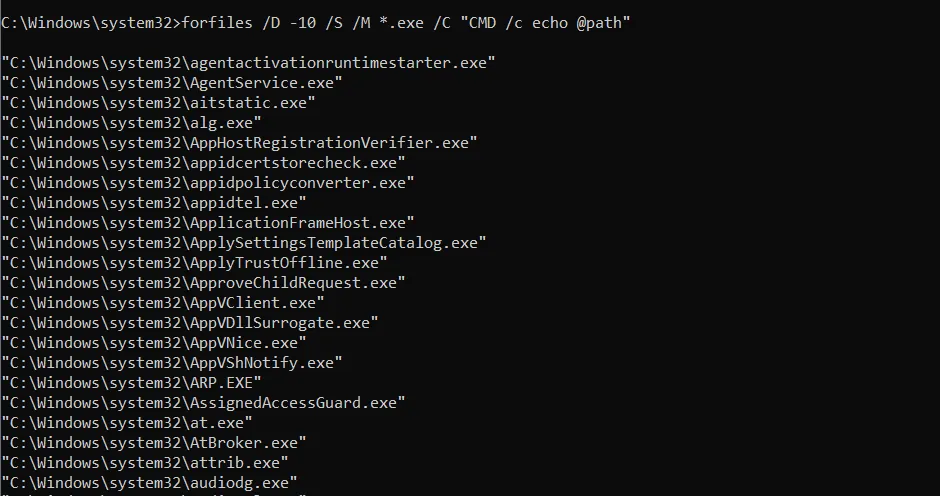
To view files without further detail about their path, specific file extension, and modification date,
forfiles /D -10 /S /M *.exe /C "cmd /c echo @ext @fname @fdate"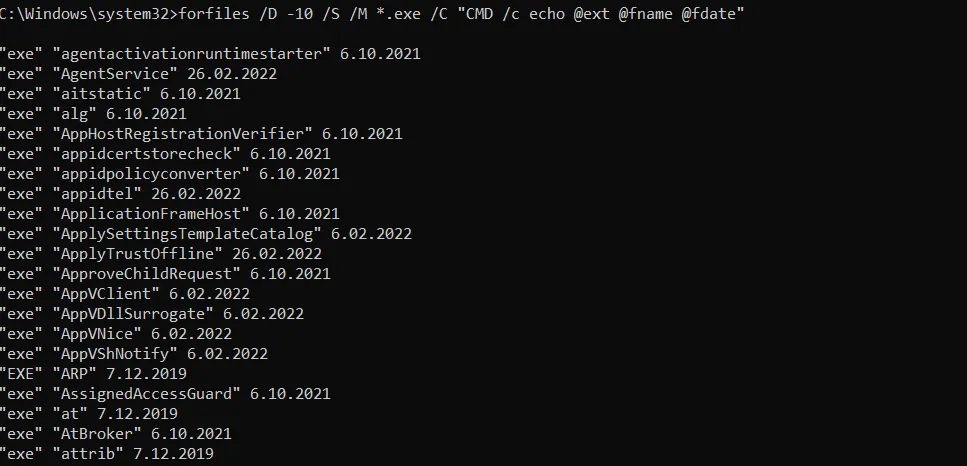
To check files that have been modified in the last 10 days;
forfiles /pc: /S /D -10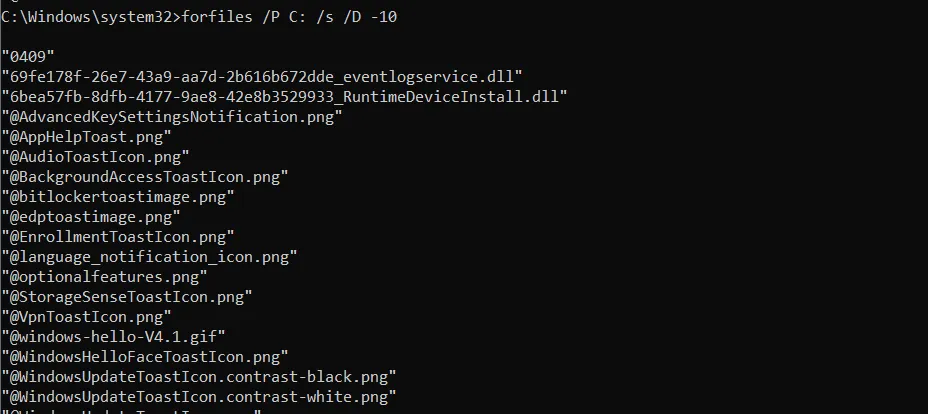
Firewall Settings
To view firewall configurations and inbound/outbound traffic at the command prompt;
netsh firewall show config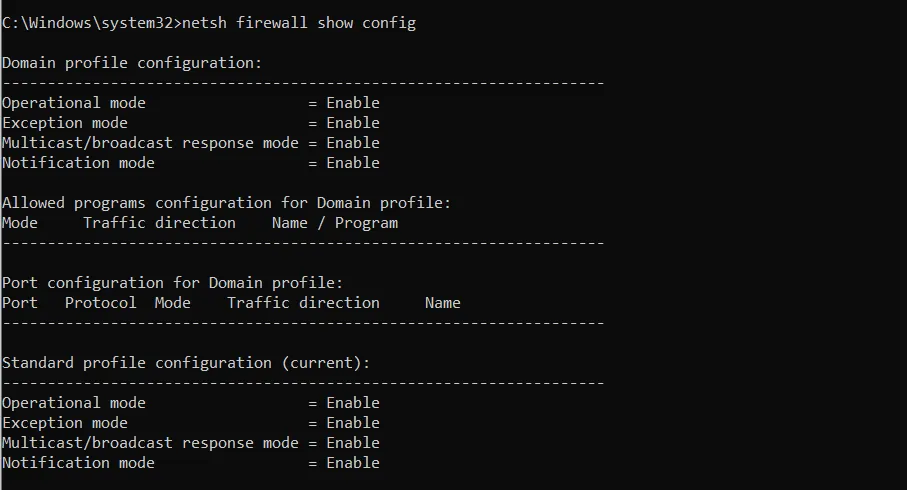
To view firewall settings at the command prompt;
netsh advfirewall show currentprofile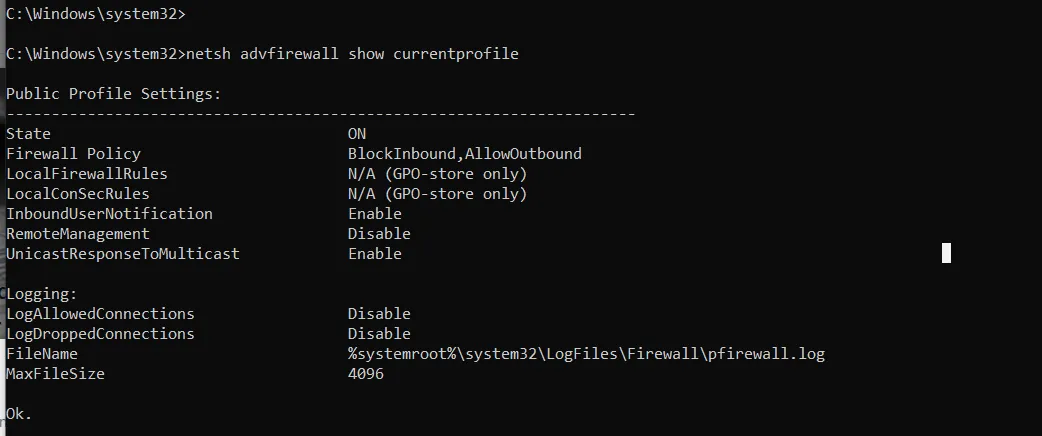
Open Sessions
To see any open session on the system;
net session
Log Entries
“Win+R”
eventvwr.msc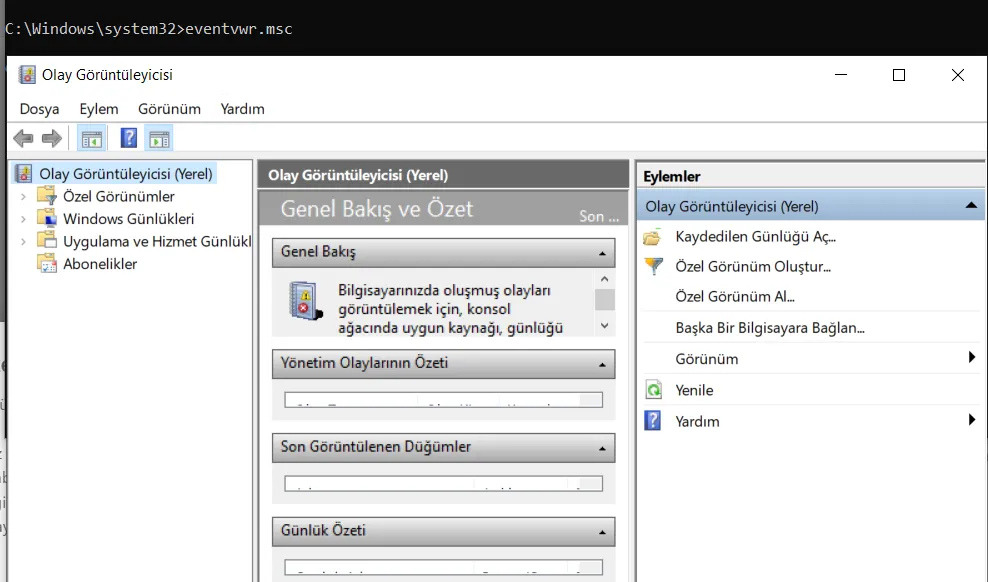
To export the logs for a specific event;
wevtutil qe security
To get the list of event logs in PowerShell;
Get-EventLog -List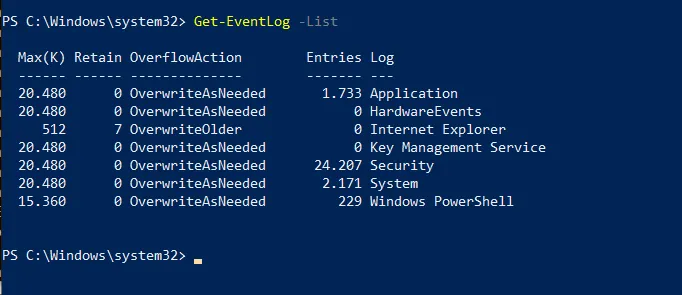
Thanks for reading this far. :)
sources: