PowerShell Artifact Analizi
In this article, I will cover one of the most important areas that needs to be analyzed during Incident Response processes. Detecting commands written…

Hello everyone. :)
In this article, I will cover one of the most important areas that needs to be analyzed during Incident Response processes. Detecting commands written using PowerShell at this stage is of great importance. As a result, if a malicious PowerShell command has run on the systems, it can be detected this way, and the necessary countermeasures can be taken without difficulty.
Why Do Attackers Use PowerShell?
There are many reasons why attackers carry out attacks using PowerShell. Some of these are as follows;
- They can control systems remotely without leaving traces on them.
- It’s difficult for classic security products to detect.
- The scripts used here are easier to obfuscate.
- It’s easy to use and to learn.
- Attackers can escalate privileges on systems using PowerShell.
- They can steal or corrupt data residing on the system.
- They can establish persistence on systems via PowerShell.
Detecting Past PowerShell History
In this scenario, in order;
- We’ll go to the location where past PowerShell commands are stored.
- We’ll examine the previously used commands found there.
- Then we’ll run a few commands ourselves in PowerShell.
- Finally, we’ll display the commands we ran ourselves.
On Windows systems, the commands previously used by users are stored in the following location. Let’s first go to this location.
C:\Users\Username\AppData\Roaming\Microsoft\Windows\PowerShell\PSReadLine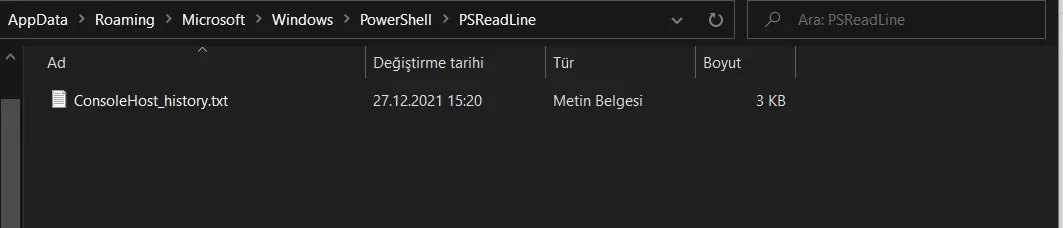
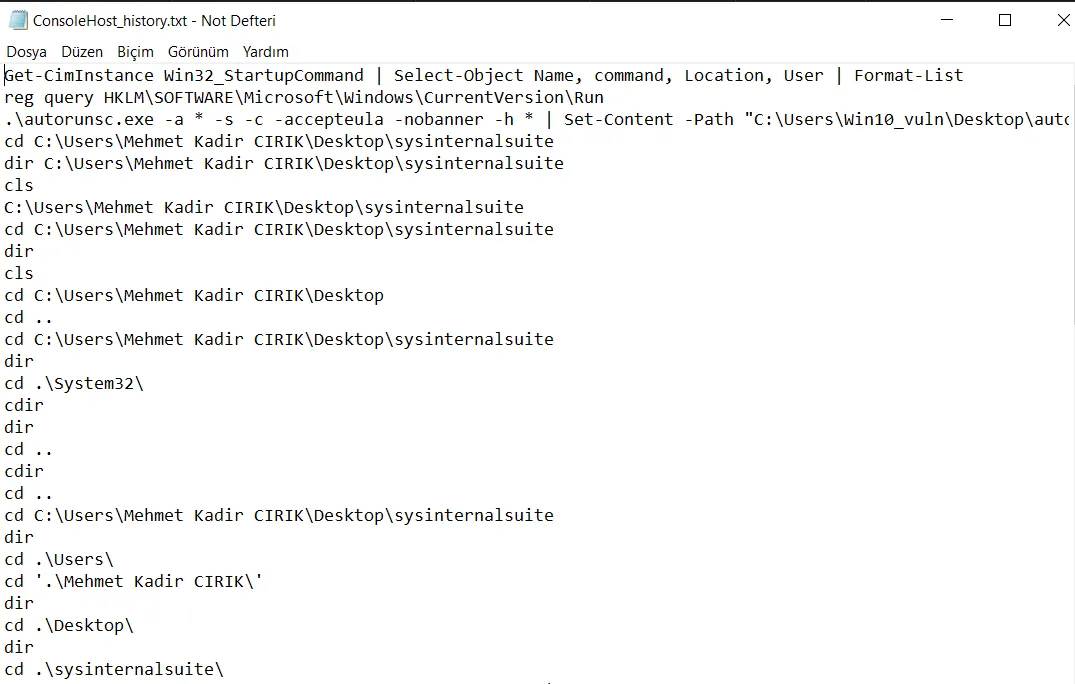
We open the “ConsoleHost_History.txt” file found here. After opening the file, the past PowerShell commands are displayed as shown below. From here, the PowerShell commands previously used by users can be analyzed in detail, and as a result, if a malicious command was used, it can be detected.
To make this clearer, I’ll write and run a few PowerShell commands myself in this section.



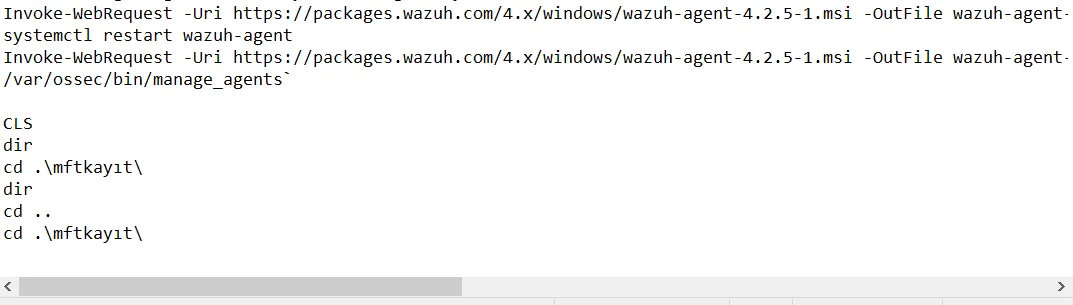
Finally, I go back into the contents of the “ConsoleHost_History.txt” file. As shown below, the commands I most recently ran appear in this file, in order.
Thank you for reading this article this far. :))