Log Analysis with PowerShell
In my new article, I'll share information about where the commands run using PowerShell are kept and how they can be viewed. I'll then go on to talk about…

Hello everyone. :)
In my new article, I’ll share information about where the commands run using PowerShell are kept and how they can be viewed. I’ll then go on to talk about how logs kept on the system you’re using can be viewed with PowerShell, and how they can be made more understandable.
PowerShell History Records
Commands run using PowerShell carry evidentiary value. For this reason, examining and investigating commands run in PowerShell is an important matter.
Was your system compromised by an attacker using these commands? If it was, you can find the answers to many questions from here, such as what these attackers did inside the system, whether they ran any malware, whether a new user was created, or whether privileges were assigned.
PowerShell has the “Get-EventLog” command, which can make the process of retrieving and examining the desired logs easier.
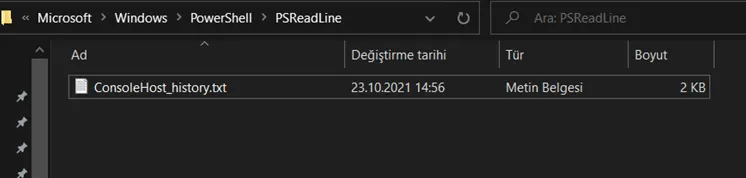
Commands run in PowerShell are kept as “.txt” files in the following location. You can browse through its contents.
Location:
C:\Users\User\AppData\Roaming\Microsoft\Windows\PowerShell\PSReadLine\ConsoleHost_history.txt
Past PowerShell records are kept under this file.
Reviewing Logs with PowerShell
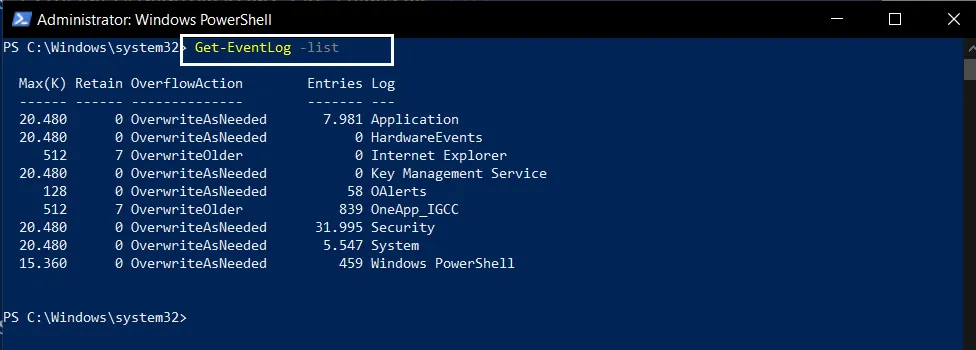
The Get-Eventlog command is used during PowerShell log review processes.
- First, using the “List” parameter, you can view the logs and their record counts.
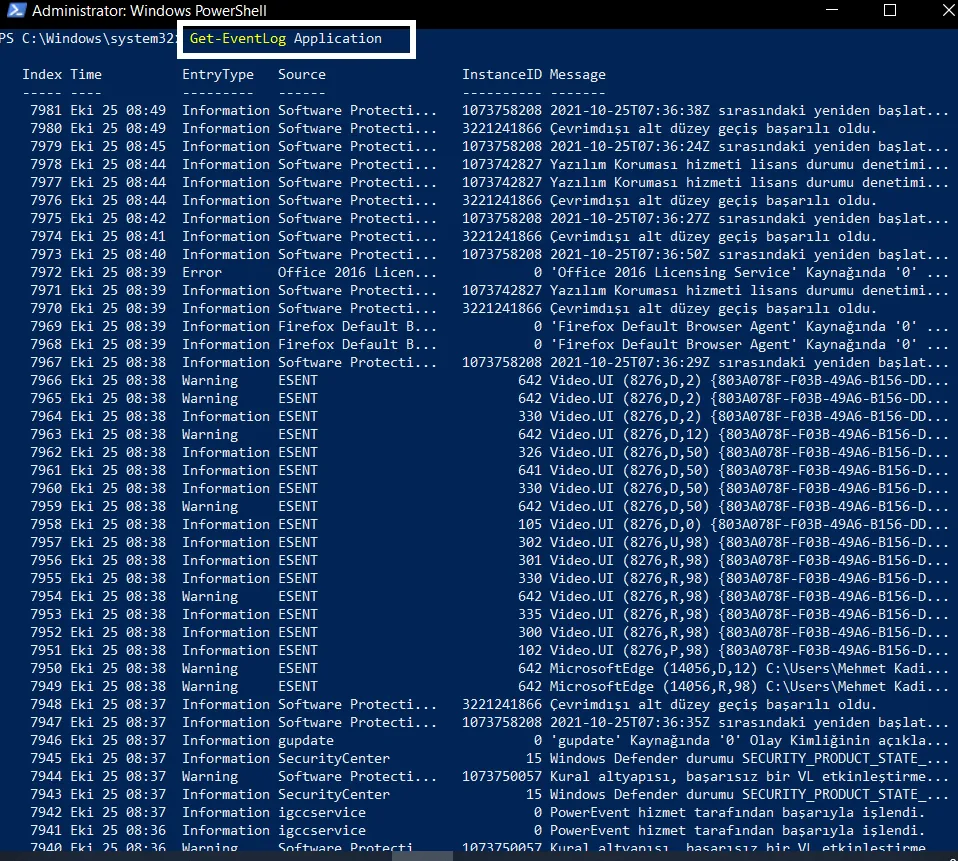
- By specifying the desired log type, you can get output as shown below. Since I wanted to view “Application” logs, I used the command below.
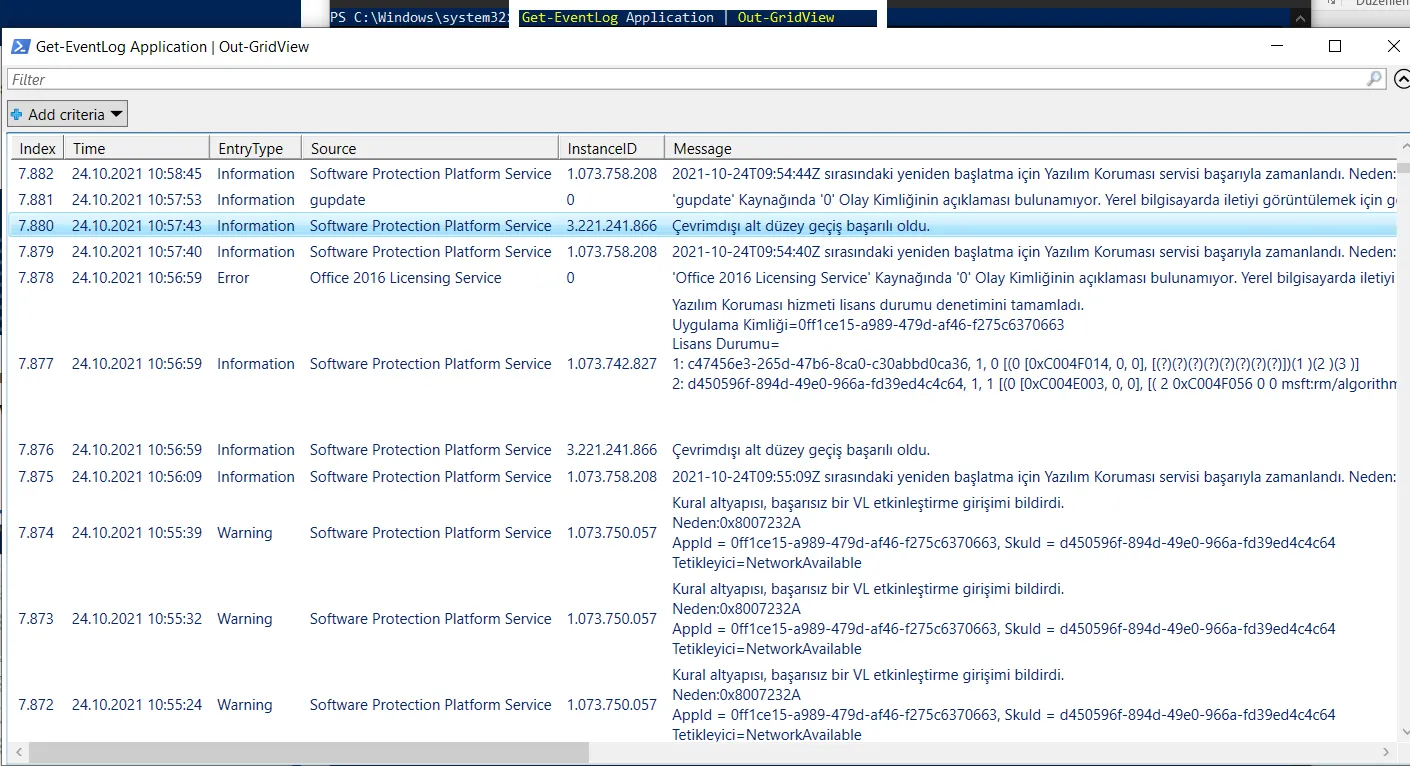
- Since viewing a lot of logs can be complex and difficult, you can use the “Out-GridView” command to review and view the logs in a separate window in a more understandable way.
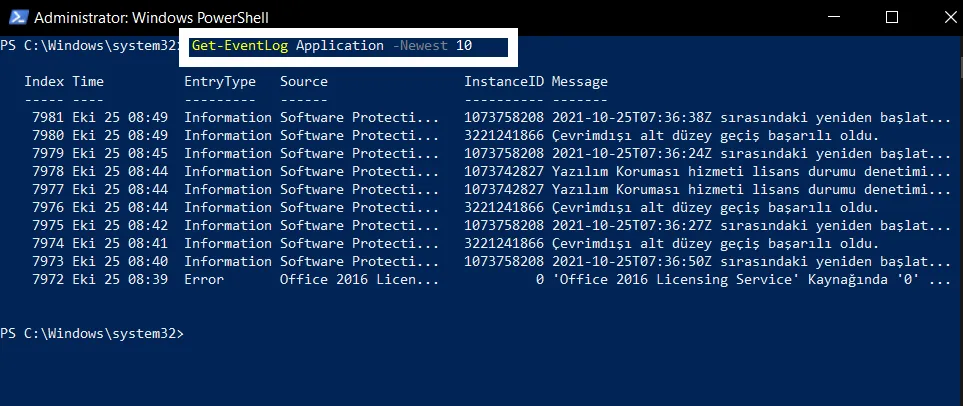
- Using the “Newest” parameter, you can specify a number to determine how many records you want to view. This also makes research and review easier.
-
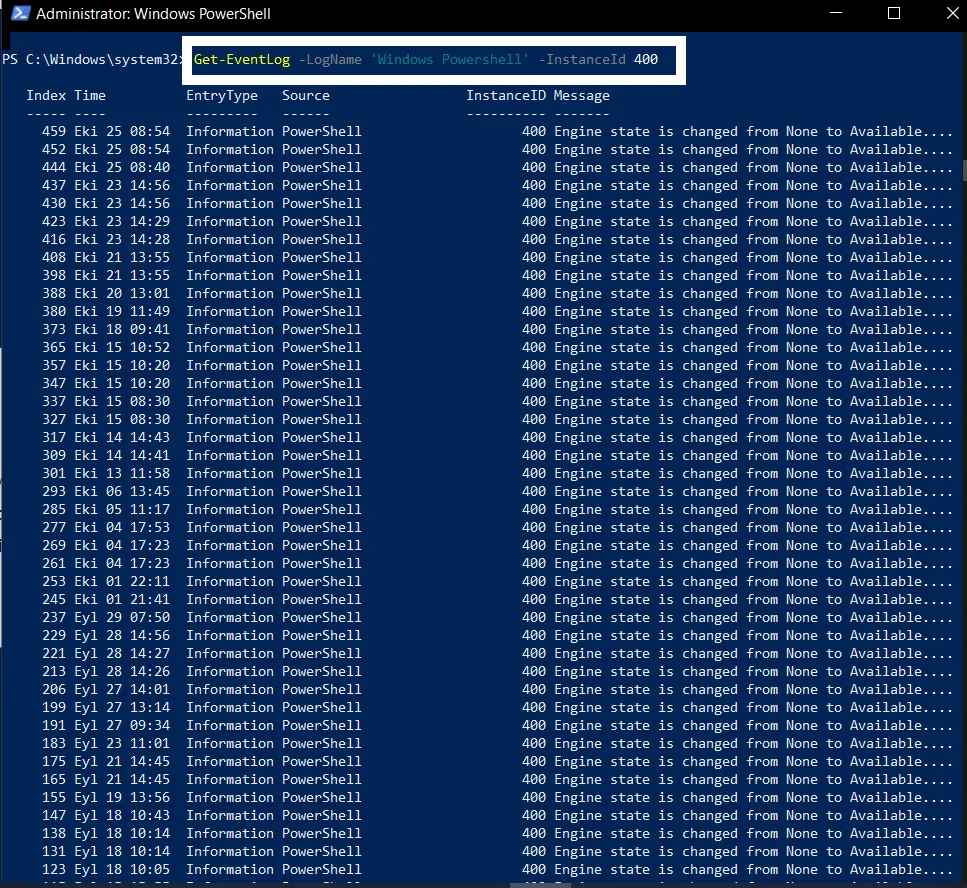
If you’re searching for a specific log type, this can be specified with the “InstanceID” command. This way, only the results for the log type you’re searching for are returned.
-
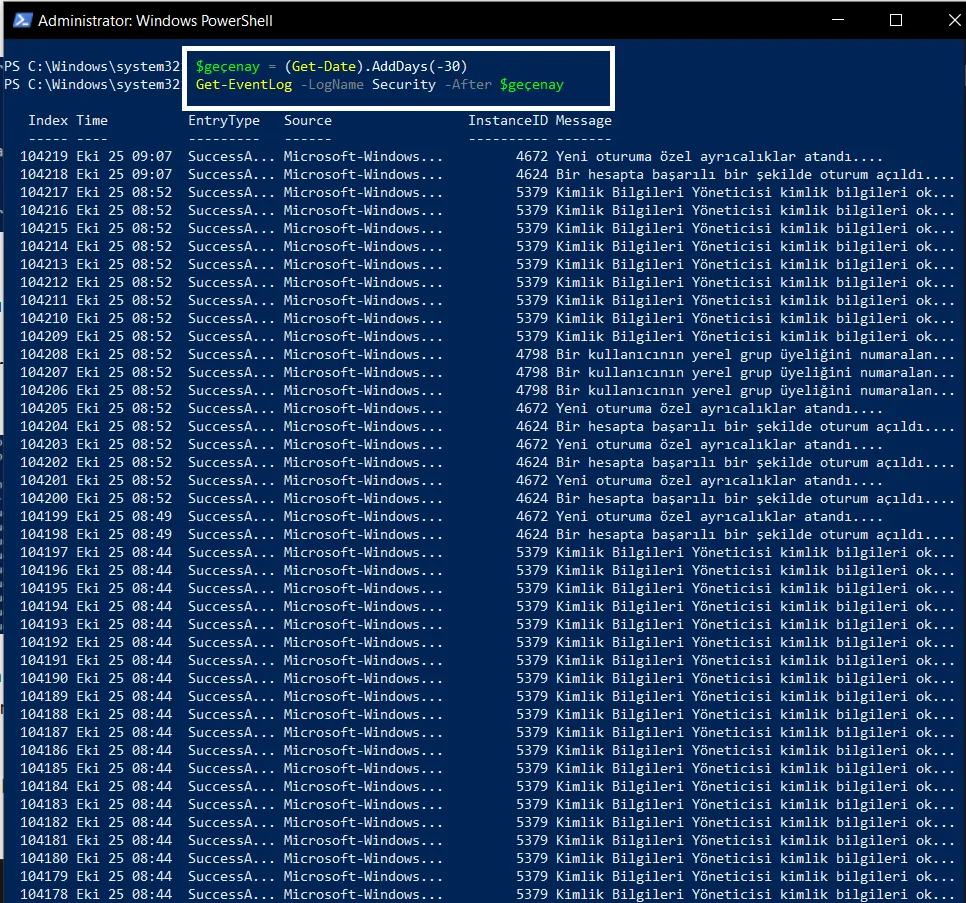
Here, we can assign 30 days’ worth of logs to the $lastmonth variable. It can then be viewed with the “–After” parameter.
Thanks for reading this far. :)